Trapeze5 gives
you the option of creating your own toolbars, which can be displayed in your
workspace in addition to any of the five standard toolbars.
Click Tools > Customize.
The Customize dialog opens.
Click New.
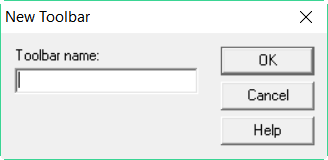
The New Toolbar dialog appears.
In the Toolbar name field, type the name of the new toolbar.
Click OK.
An (empty) toolbar appears in your workspace. If it does not appear, make sure the box to the left of the name of the new toolbar
in the Toolbars frame has a check mark. You may also have to use the mouse to move the
toolbar into place.
Open the Commands tab.
From the Categories field, choose a toolbar,
which contains commands you want to add to the new toolbar.
From the Buttons frame, click and drag selected
buttons to the new toolbar.
Repeat steps 6 and 7 as needed.
Click OK.
The toolbar appears with a title bar as long as it is floating on the screen apart from other toolbars.