Place text in quotation marks for exact match search results.
Selecting Lines to Copy
You can choose to copy more than one line at a time.
In the FX Copy- Select Context view, click
Lines.
Click Next.
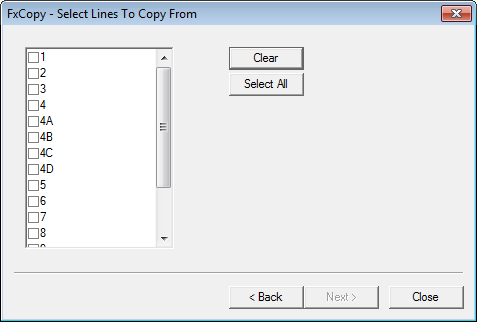
In the Select Lines to Copy From view, do one of the following
steps:
Select the check boxes beside the lines you want to copy.
Click Select All to check all lines for copying. To clear
all selections at once, click Clear.
In the Select Items to be copied view, select the data
items—related to the specific lines you chose—you want to copy. Select any of the
following data items, and click Next:
Stops
Nodes
Print Labels
Relief Labels
Patterns
Traces
Comments
CTM Transfers
Itineraries
Through-Lines
Fare Rules
Special Points
Configurations
Note: CTM Transfers, Itineraries and Fare Rules are used with the Trapeze4 INFO
product. If your site does not have this module, these items are not logical for
selection.
(If you selected only one line, the Line Detail To
Copy view opens first.)
If you do not select an item, which has
an essential relationship to an item that you have selected, the system
automatically selects that item. For instance, if you select
Patterns, Nodes is automatically
selected as well. If you select Special Points,
Stops, Nodes,
Patterns and Traces are also
selected.
The next view provides some options that you can apply to determine when and what is copied into
the destination file.
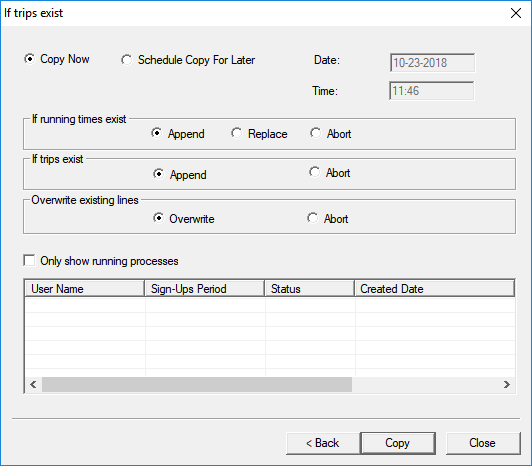
Select one of the following options to set when the copy can be performed:
Copy Now: When selected, the system starts counting down with
the remaining time shown in the left field. You are unable to exit out of this view
until the copy has been performed. When the copy is complete, the view shows
Finished Copy.
If trips exist for the selected lines in the
destination database, a message asks whether you want to append the trips from the
source database.
If running times exist for the selected lines in the destination
database, a message asks whether you want to add the running times from the source
database.
In either case, click to proceed or click to cancel the copy.
Schedule Copy For Later: Select this to schedule the copy
for a later time and date. Since the copy process can take some time depending on
the amount of data selected, schedule the copy appropriately in the
Date and Time and fields.
The grid at the bottom section of the dialog box shows the list of copy requests
and their status.
Select an option in the If trips exist and If running
times exist frames:
If you do not want to add trips or running times to your existing trips, click
Abort.
To add the running times from the source database, click
Append (This is the default).
To replace the running times in the destination database, click
Replace.
Choose whether or not you want to overwrite the existing lines, if any, in the
Overwrite existing lines frame
To overwrite the existing lines, click Overwrite.
If you do not want to add lines to the existing lines, click
Abort.
Optional: To view only the current process, select the Only
show the running processes check box.
Click Copy.
Click Close. You are unable to exit this view until the copy has
been performed. When the copy is complete, the view shows Finished
Copy.
Note: If a line with the same abbreviation exists in the target sign-up period, a
message warns that the line exists and asks if you want to overwrite it. If you click
Yes, all data of the existing line will be deleted and the
copy proceeds.
(In a multi-agency environment) If the context property,
Stops and Nodes have no agency has been selected:
Duplicate nodes are not copied, that is, nodes "shared" among agencies are not
duplicated. If the property is not selected, the system copies all nodes
regardless of duplication.
When a garage is created, a node is also created with AgencyId = 0. When the
system checks for existing nodes, it now checks specifically for nodes that have
garages that belong to the agency in the context (F3).