
Selecting Trips to Copy
The procedure for selecting Trips to copy is similar to that of selecting Lines.
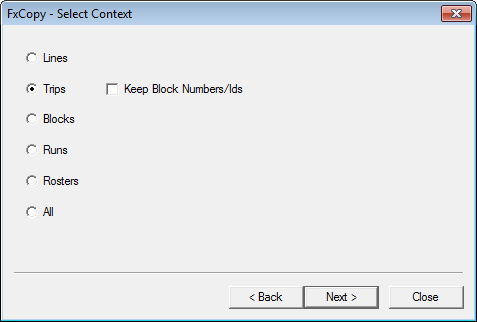
Check the source and destination divisions and garages associated with the source trips to be copied when copying trips (whether or not selecting the Keep Block Numbers/Ids option, which is beside the Trips option in the FX Copy - Select Context window).
If the divisions and garages in the source agency also exist in the destination agency, copy and match on Divisionabbr and Garageabbr.
If there are divisions in the source agency that do not exist in the destination agency, you are prompted to create the missing divisions in the destination agency with abbreviations (Abbrs) that match those of the source agency divisions. The message shows the values that must be created. Otherwise, you cannot continue with FX Copy and the Next button is not activated.
-
Select Trips in the Select Context
view.
-
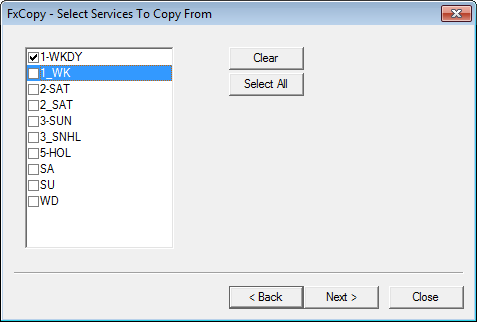
In the Select Services To Copy From view, select the services
individually you want to copy or click Select All, and click
Next.
To clear all selections at once, click Clear.
-
In the Service Detail To Copy To view, select the service to which
you want to copy the selected source, and click Next.
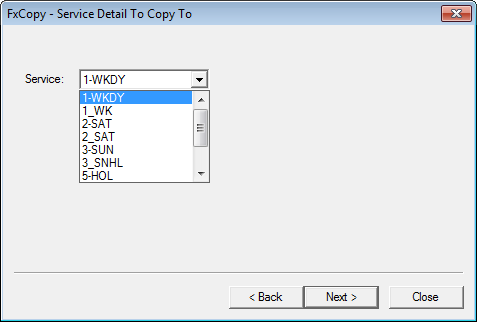
If in a multi-agency environment, the Service field shows DEFAULT. There is no list of options shown. The system copies to the target service with the same abbreviation as the selected source. If none exists, a new service is created with the same abbreviation as the selected source. If copying data from the same sign-up period, you are unable to add a new service. If copying from another sign-up period, a new service is created with the same abbreviation as the source.