Place text in quotation marks for exact match search results.
Unloading Runs
Runs that do not require rostering can be unloaded.
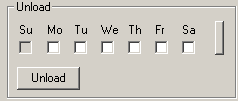
If you have runs that do not need to be rostered, you can unload
them with the Unload frame.
For example, the runs can be assigned to
your extraboard or to your part-time workers depending on what is allowed by your transit
site rules and union agreement.
In the Roster grid, select the runs to unload.
In the Unload frame, the check boxes of the appropriate
days of the week and the Unload button are activated.
Perform one of the following steps:
Select the days of the week of the run you want.
To select all days, click the button on the right.
Click Unload.
A message appears asking you to confirm the unloading of the runs in the
selected rosters.
To confirm the action, click Yes.
Note: No changes can be applied if there are Off Days assigned to any of the selected
rosters.
If some of the selected rosters that you want to unload from have Off Days, a message
appears asking you to confirm that you want to unload the runs from a certain number of
rosters.