
Copying Nodes and Stops
Copy existing nodes and stops from one direction to the other in a line, for example, create a Southbound direction with information from the already existing Northbound direction.
- On the Nodes tab, select the node or stop on which you want to base the copy.
-
Do one of the following steps:
- Click .
- Click Edit:
 .
.
The Edit dialog box opens with the Include Stops option selected by default. -
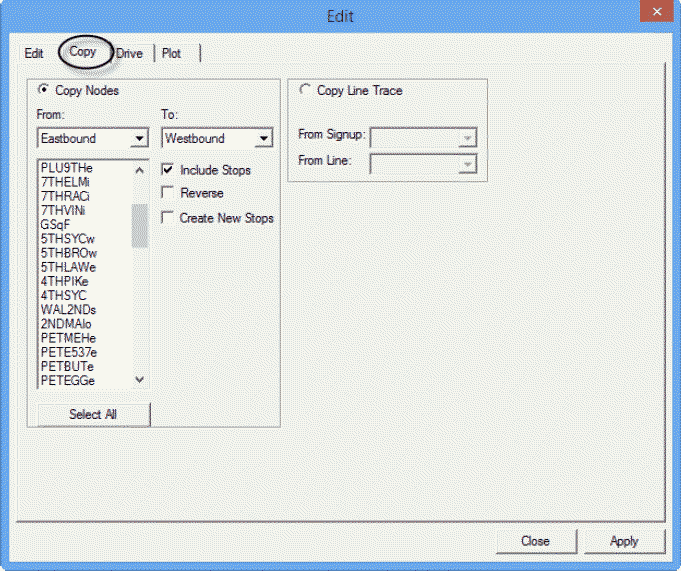
Select the Copy tab.
-
Do one of the following steps:
- From the list of nodes and stops, select the nodes or stops you want to copy.
- To include all nodes and stops in the list, click Select
All.Note: When you select all data in a Route Definition grid, you are able to paste the data including the supplementary data into an Excel spreadsheet.
- To copy the nodes or stops for the opposite direction, for example, from the Northbound direction to the Southbound direction, select the Reverse check box.
- Select the Create New Stops check box to create stops on the opposite side of the streets along the route.
- Optional:
To copy a route trace from a line in another sign-up period to an existing line in the
current sign-up period, select Copy Line Trace.
Note: The other fields in the dialog box appear shaded.
- Select the sign-up period you want from the From Signup drop-down box.
- Select the line you want from the From Line drop-down box.
Note: You must select a line that has a route trace. -
Click Apply.
The Change Stop Abbreviations dialog box opens.
- Edit the copied data to differentiate it from the original data.
- Click Close.