
Plotting Node to Node Pairs
The Plot tab allows you to calculate the distance between nodes on the system map.
- On the Node to Node tab, click the node to node pair you want to plot.
-
Click the Edit button:
 The Edit dialog box appears.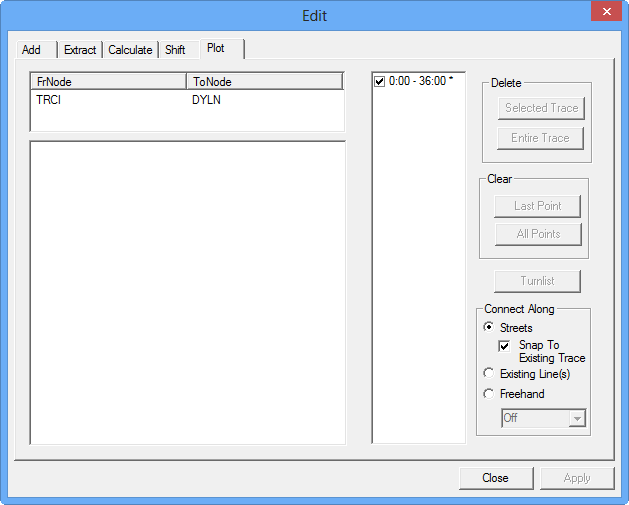
In the left frame of the Plot tab, the data of the node to node pair you selected on the Node to Node tab appears. The run time intervals assigned to the pair appear in the right frame. On the map, a green square represents the start node and a red square represents the end node.
-
Depending on how you want the route to be connected, select the option you want to
apply in the Connect Along frame:
- Streets Existing Line(s)
- Freehand
- If you selected Streets or Freehand, press SHIFT and click the streets on the system map, starting from the green square along the route to the red square. The names of the street/intersection on each point you click on the map appear on the left frame of the Plot tab.
-
Click Apply.
The plot information is saved.
-
To view the turn list, click Turnlist.
The Turn List dialog box appears with the plot details.
- Click Close.