Using OPS Employee Security Management
Users can create security user accounts for active employees.
The authentication mode for the OPS Employee Security Management screen is defined in the property. Based on the selected authentication mode, the OPS Employee Security Management screen shows LDAP users, built-in users, or a mixed list of users. LDAP user security accounts are matched using first name, last name, middle name, and email address. If employees are associated with security user profiles for a type not selected in the Authentication Mode property, the system unassigns the security user account when the OPS Employee Security Management screen (or the Employee Profile screen) is opened.
- Open the OPS Employee Security Management screen.
-
Set the Context (F3).
Context options for the OPS Employee Security Management screen are Agency, Divisions, and employee Status types.
-
Select the employees to be included in the Employee Self-Service
Users security user group.
Any users highlighted in red aren't currently active in the system. They won't be included in security groups generated that you create in this session.Use Shift to highlight groups of employees and Ctrl to highlight individual employees.
-
Select Add Employee Self-Service Security Group Users:
 A confirmation message appears. If you choose Yes, a validation message appears to let you know which security users were created and are included in the group. If there are users that can't be added to the group, additional information is provided.
User IDs are assigned to employees who didn't previously have them and employees with existing user IDs are added to the new group. If the system tries to create a new security user identity and an identity with the same name already exists in the system, an error message appears.
-
To assign an existing security user profile to an employee:
-
Select an employee and then select Assign Existing Security
User:
 The Assign Security User dialog appears.
 -
Select the existing security user Identity to use
and then Assign.
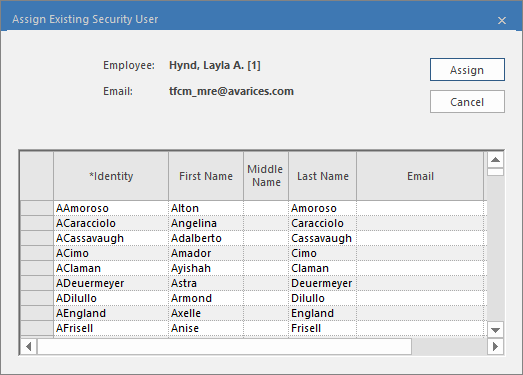
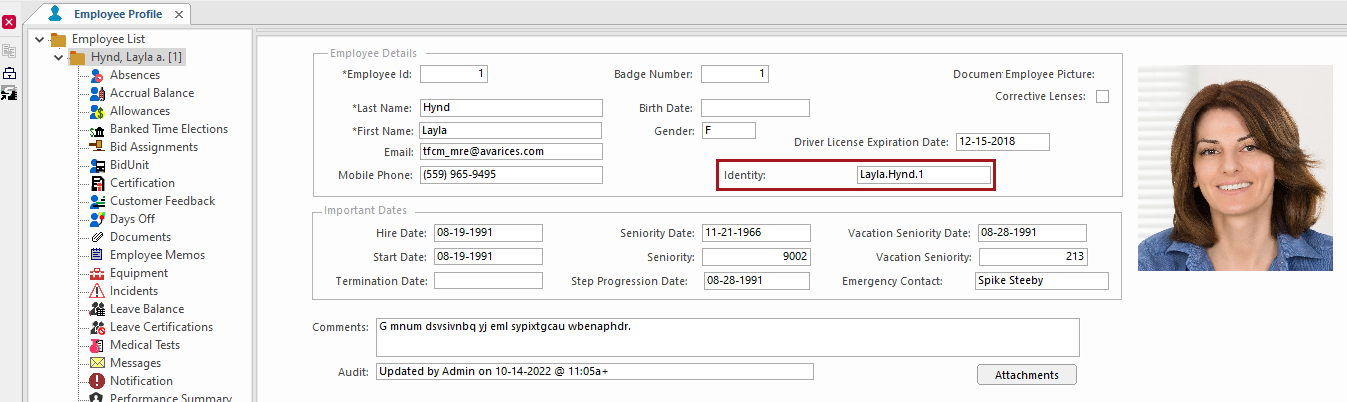
The Username the user should use when logging in to Employee Self-Service is listed in the CoreIdentity column.
-
Select an employee and then select Assign Existing Security
User:
- Optional:
To remove a security user account from an employee, select the employee and
then Un-Assign Security User:
 Note: This removes access from the employee user, it doesn't remove the employee's Security user account. If desired, remove the user account in the Security screen.