Using ESS with Sign-In Terminal
If your agency uses Sign-In Terminal, employees can sign in to work using ESS.
- In the Client Shell, open Properties.
-
Navigate to and define the following:
Property Description Sign-In Required Division Group Divisions ancillary group for employees required to sign in. Sign-Off Required Division Group Divisions ancillary group for employees required to sign out. Sign-In Required Method When employees are required to sign in. This can be defined on an agency-by-agency basis.
Sign-Off Required Method When employees are required to sign out. This can be defined on an agency-by-agency basis.
Sign-In Required Work Working Status ancillary group that requires employees to sign in. The default is WS-SignInReq. Sign-Off Required Work Working Status ancillary group that requires employees to sign out. The default is WS-SignOffReq. -
Open the OPS Sign-In Terminal Kiosks screen.
A kiosk named Employee Self-Service must exist for sign-on and sign-off activities to be logged in the OPS Sign-In/Off Log and OPS SIT Activities screens.
-
To create a kiosk, in the row marked with an asterisk, do the following:
- Open the Daily Activity screen and set the Context (F3).
-
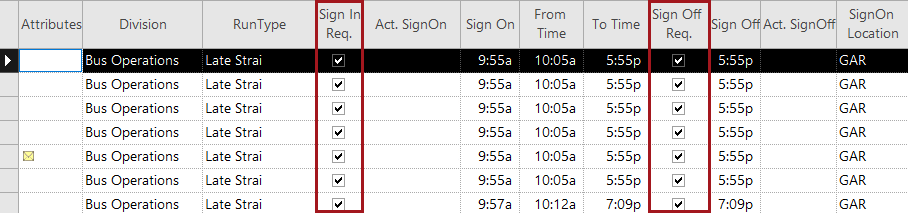
If not already selected, select Sign In Req. for
employees expected to use the Sign On option and
Sign Off Req. for employees expected to use the
Sign Off option in ESS .