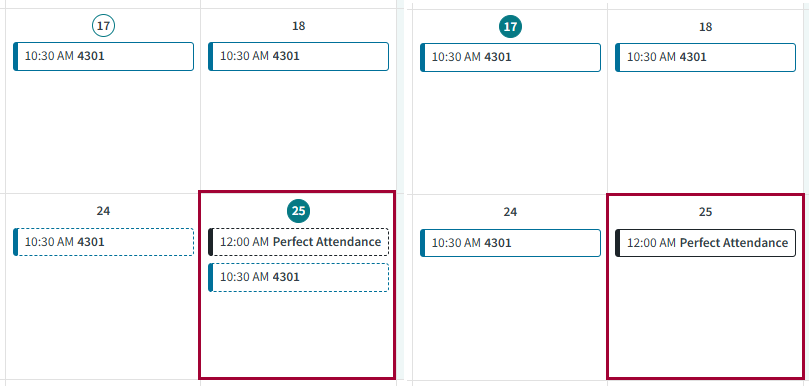
Viewing Absences on Larger Screens
View most previously taken absences from the Absence History page and view past and future absences from the Calendar page.
-
View historic absences:
-
View historic and future absences and absence requests:
- Optional:
Select the chevrons (
 ) to show filter options. Under Filter
By, clear Work Assignment,
Volunteer, and Extra
Pay and select Absence and
Pending Requests.
) to show filter options. Under Filter
By, clear Work Assignment,
Volunteer, and Extra
Pay and select Absence and
Pending Requests.
- Optional:
Use the arrows to move forward or backward to other months.

All absences and absence requests are shown.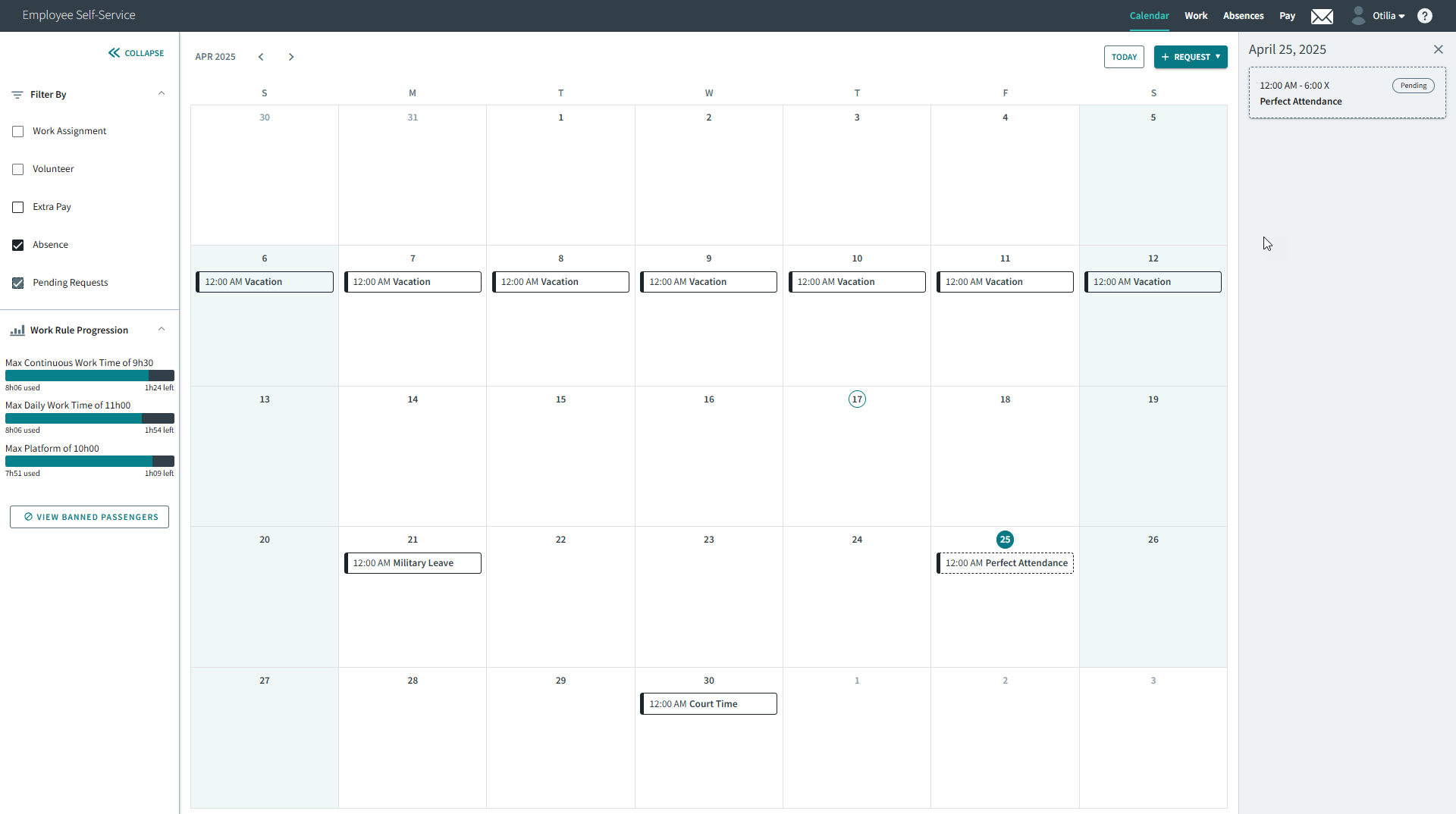
-
Select a date with an absence.
-
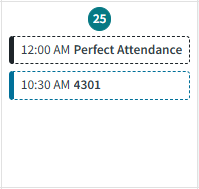
In the day view, select an absence card.
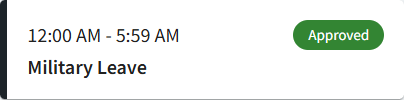
Absence details appear. Absences recorded in the system show as Approved. Absence requests waiting for review show as Pending.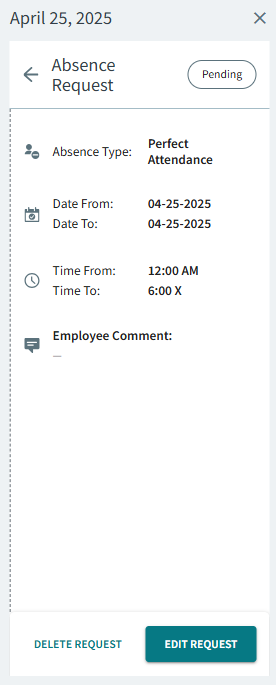
- Optional:
Select the chevrons (