
Viewing Absences on Smaller Screens
View most previously taken absences from the Absence History page and view past and future absences from the Calendar page.
-
View historic absences:
-
Select menu (
 ), then Absence History.
Transit agency policies determine the types of absences that show in your absence history. These are the Active absence types defined for the ancillary group selected in .
), then Absence History.
Transit agency policies determine the types of absences that show in your absence history. These are the Active absence types defined for the ancillary group selected in . -
Expand (
 ) absence cards for more information.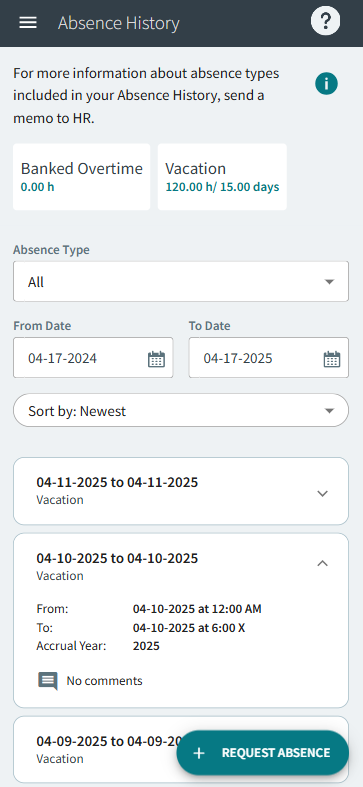
-
Select menu (
-
View historic and future absences and absence requests:
-
Select menu (), then Calendar.
- Optional:
Select Filters (
 ). Clear Work Assignment,
Volunteer, and Extra
Pay. Select Absence and
Pending Requests and then Apply
Filters.
). Clear Work Assignment,
Volunteer, and Extra
Pay. Select Absence and
Pending Requests and then Apply
Filters.
- Optional:
Use the arrows to move forward or backward to other months.

-
Select a date that includes an absence.
Black dots (
 ) mark dates with absence events.All absences are shown on the calendar.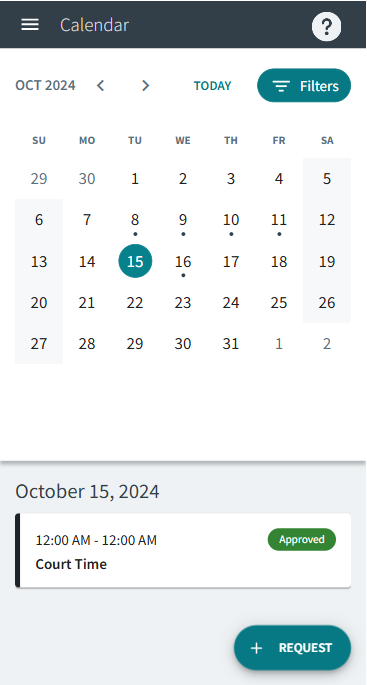
- Optional:
Select an absence card.
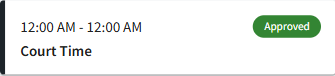
Absence details appear. Absences recorded in the system show as Approved. Absence requests waiting for review show as Pending .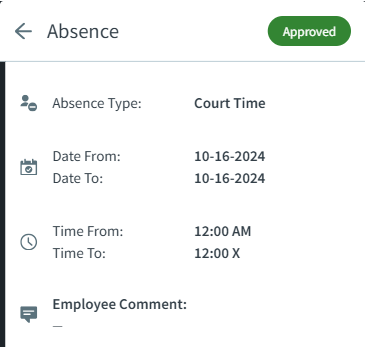
-
Select menu (