Place text in quotation marks for exact match search results.
Adding Offices
You can add Operator Offices that are used throughout the IVR system for transferring
callers to call flow, or to generate a dynamic list of numbers to which callers can be
transferred.
In the List of Offices screen, click New
Office on the screen toolbar.
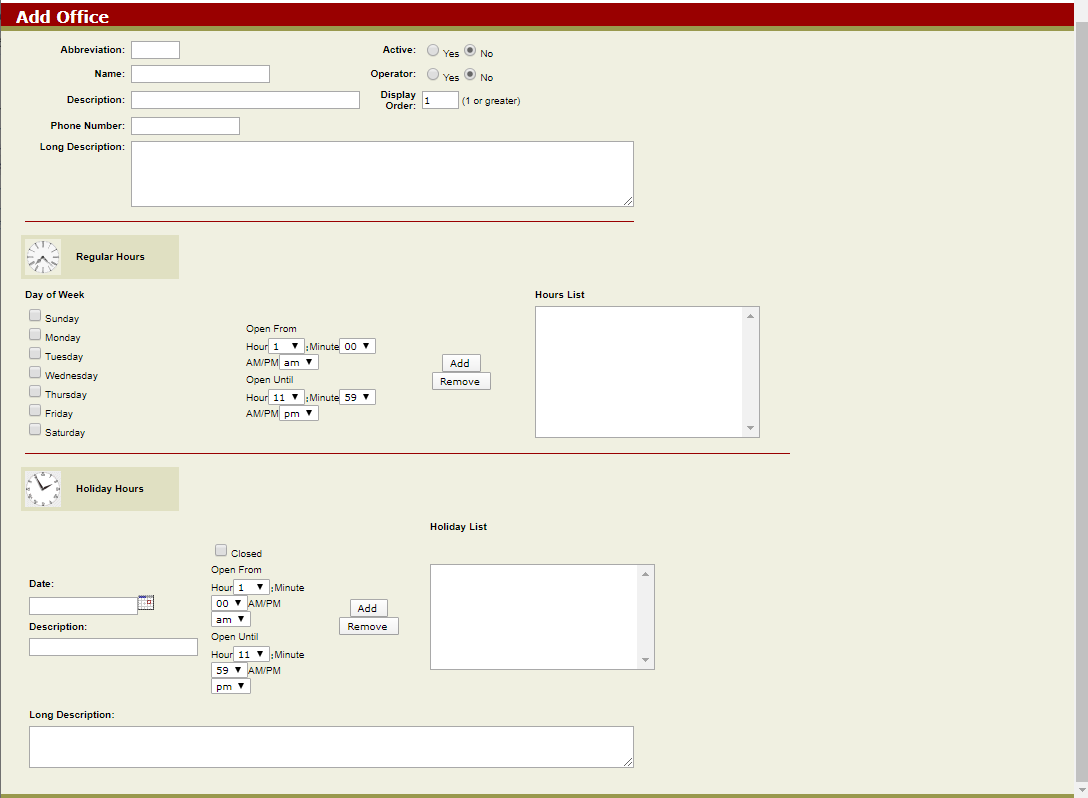
The Add Office screen appears.
In the top pane, type or select the appropriate values in the various fields.
In the Regular Hours pane, set the hours of operation of the new
office:
Select the days of the week when you want the office open.
From the Open From and Open Until
fields, select the time band when the office is open and someone is available to
answer calls.
Click Add.
Note: You are only permitted to set one time band for each day. If you need to change
the time band for an already selected day, select that day from the list and click
the Remove button.
In the Holiday Hours pane, set exceptions to the office hours
for specific dates.
This is often used on holidays where the hours of operation may be different. If the
office will be open but will operate under different hours, select the correct time
band.
In the Date field, select the date for which you want to
create the exception.
In the Description field, type a brief description of the
exception.
In the Long Description field, type a more detailed
explanation.
If the office will be closed on the selected date, select the
Closed option.
Click Add.
Click Submit. An information page shows the selections made.
Click OK to go back to the Offices Manager screen.