
Viewing Booking Details
You can view additional information about a specific PASS booking with the View Booking option.
- Press F3 to display the Context dialog box and use the filters to display the appropriate feedback.
- In the Feedback pane, highlight the appropriate feedback entry.
-
Click the View Booking button:
 .
The Booking Details dialog box appears.
.
The Booking Details dialog box appears.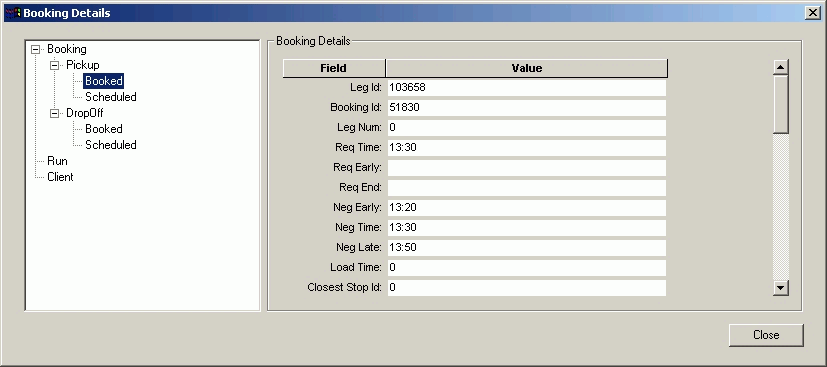
-
In the left frame of the dialog box, choose one of the following categories to view the
following information:
-
Booking: Displays general booking details.
-
Pick-up Booked and Scheduled: Displays information about the pick-up portion of the booking.
-
Transfer Booked and Scheduled: Displays information about the transfer portion of the booking.
-
Drop-off Booked and Scheduled: Displays information about the drop-off of the booking.
-
Run: Displays information about the run to which the booking is scheduled. This category does not appear in the list if the booking was not scheduled.
-
Client: Displays information from the client’s file in the PASS database.
The Scheduled, Transfer, and Run categories are only shown in the left frame if the trip has been scheduled, a transfer is included, or has been assigned to a run, respectively.
The Booking Details frame shows information about the selected option.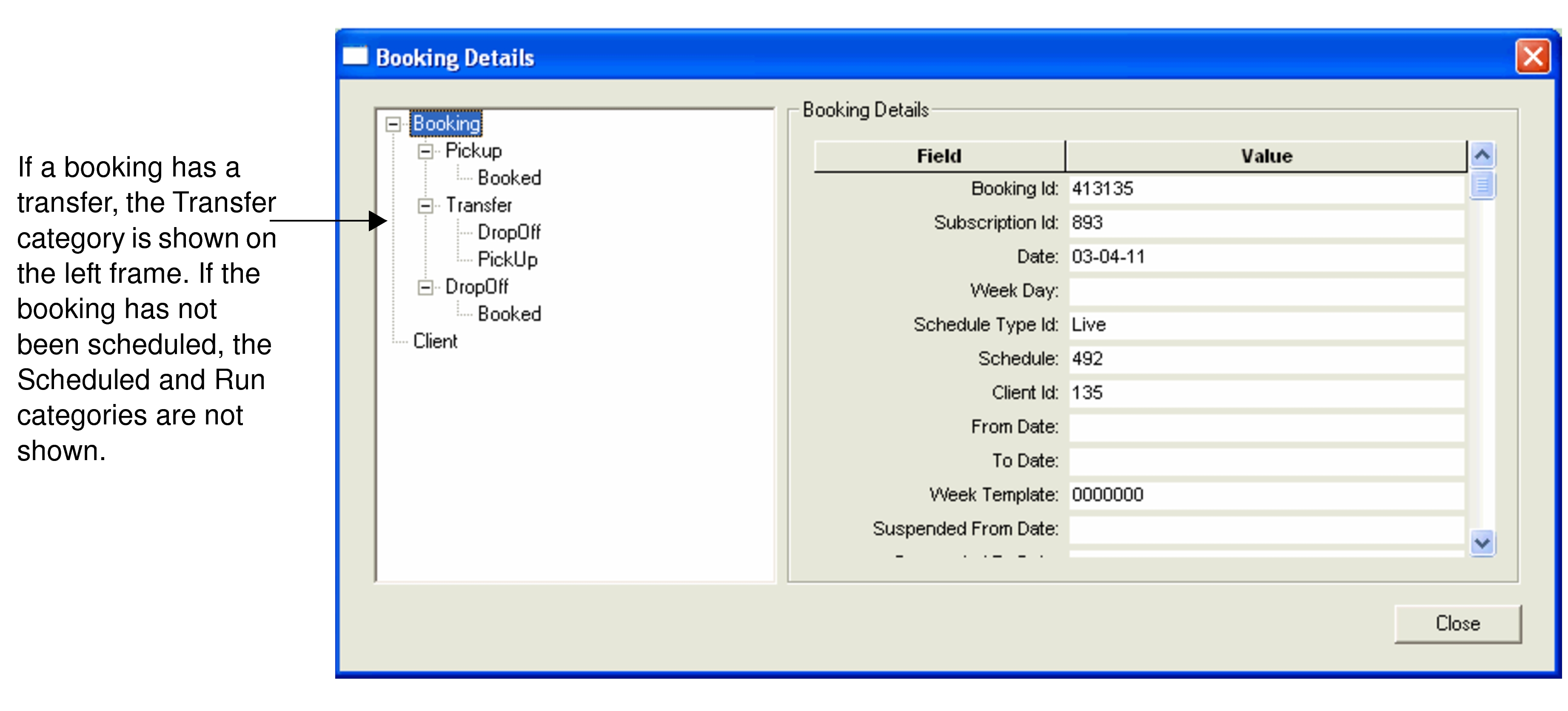
If a booking has a transfer, the Transfer category is shown on the left frame. If the booking has not been scheduled, the Scheduled and Run categories are not shown.
-