
Adjusting the Walking Speed
In addition to calculating the estimated walking distance of a trip (origin to boarding stop + alighting stop to destination), the system also provides you with an estimated walking time shown in the slider bar on the Request tab.
The Walk Time feature is hidden from view if the Use Walking Speed security property is not activated. Contact your system administrator for more information.
The following graphic illustrates the slider bar. The button at the top displays the current walking speed. As you adjust the scale, the Minimum (number below the scale) and the Maximum (number on top of the scale) speeds are also adjusted. In this example, the default walking speed is 3.10 mph, the maximum walking speed is 3.72 mph (a typical speed for fast walkers), and the minimum walking speed is 2.50 mph (a typical speed for slow walkers).
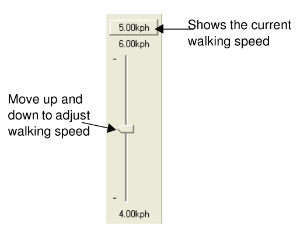
For information about changing the default, maximum, or minimum speed settings, contact your system administrator.
- On the Request tab, move your pointer over the slider.
- Press the left mouse button and drag the slider up (to increase speed) or down (to decrease speed).
- When you reach the speed you want, release the left mouse button and start the itinerary search.
- When the system has generated itineraries for the trip, open the Details tab. In the Itinerary list (top grid), the Walk Time column displays the estimated walking time calculated using the selected speed.
- Optional: To change the walking speed for a trip without having to regenerate itineraries, on the Request tab, adjust the speed on the walking speed scale and then return to the Details tab.
The Walk Time column is updated to reflect the new speed.