
Hiding and Unhiding Columns
You can hide and unhide columns in the COM Representative and COM Investigator screens.
Hiding
Columns
- Click the header of the column that you want to hide and right-click.
To hide more than one column, press CTRL and click the headers of the columns that you want to hide and right-click one of the selected columns.
- From the shortcut menu, select Hide.
Unhiding All Hidden Columns
- Click the header of any column and right-click.
- From the shortcut menu, select Unhide.
Unhiding Specific Columns
- Click the header of any column and right-click.
- From the shortcut menu, click Customize.In the Fields list, the check boxes beside the hidden columns are clear. In the following graphic, the highlighted fields are not shown on the Subject pane. For example, the Feedback Subtype column is not shown between the Feedback Type and Priority columns.
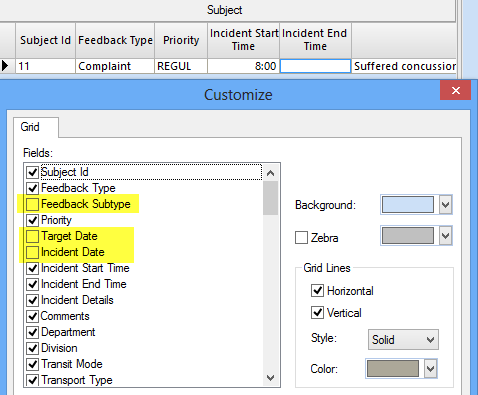
- Select the fields that you want to unhide.
- Click Apply.
- Click OK.