
Installing and Accepting Permissions
You can install DriverMate on Android devices using the DriverMate apk file provided by Trapeze.
For detailed installation instructions, see the documentation provided with your Android device.
After DriverMate is installed, an icon appears in the Android
device's Application screen.

Accepting Permissions
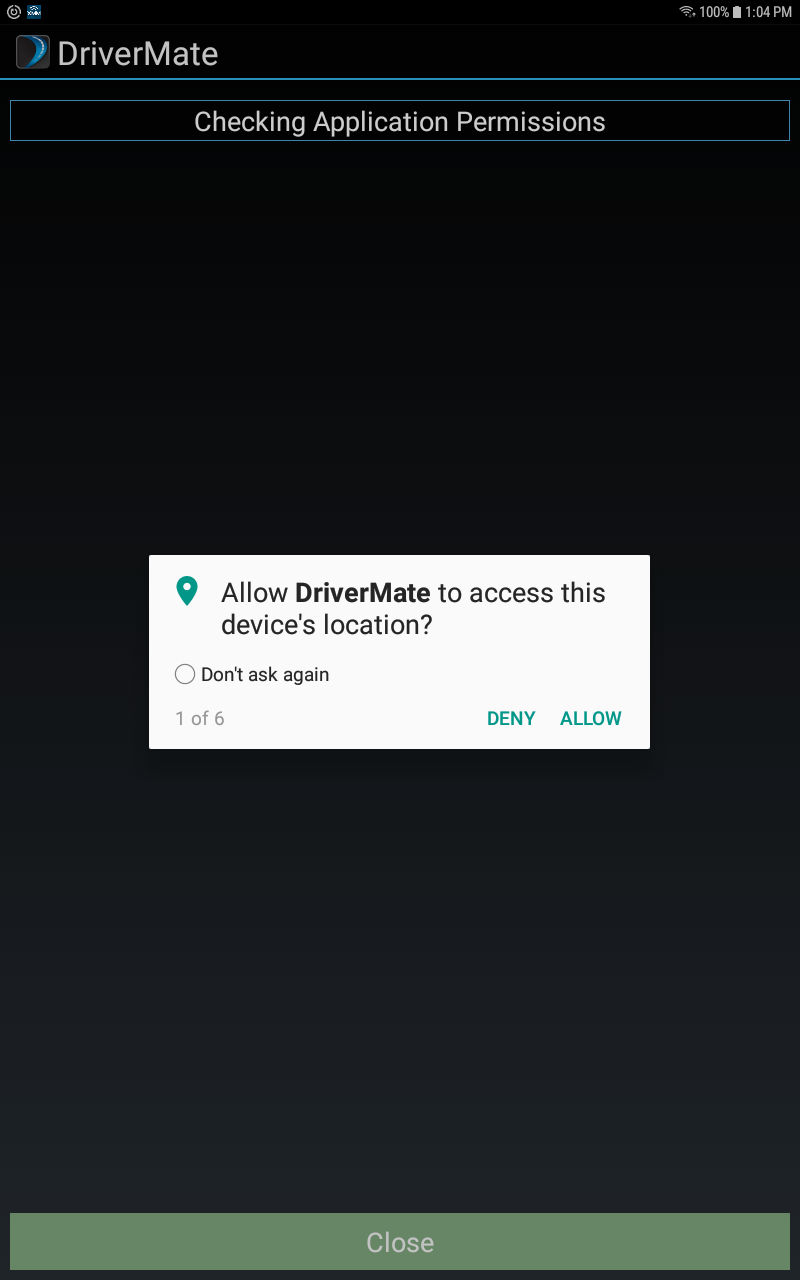
Before the login screen is launched, users will be required to accept application
permissions. Each permission will have a Deny and
Allow button.
If you deny a standard permission, the following warning will appear:
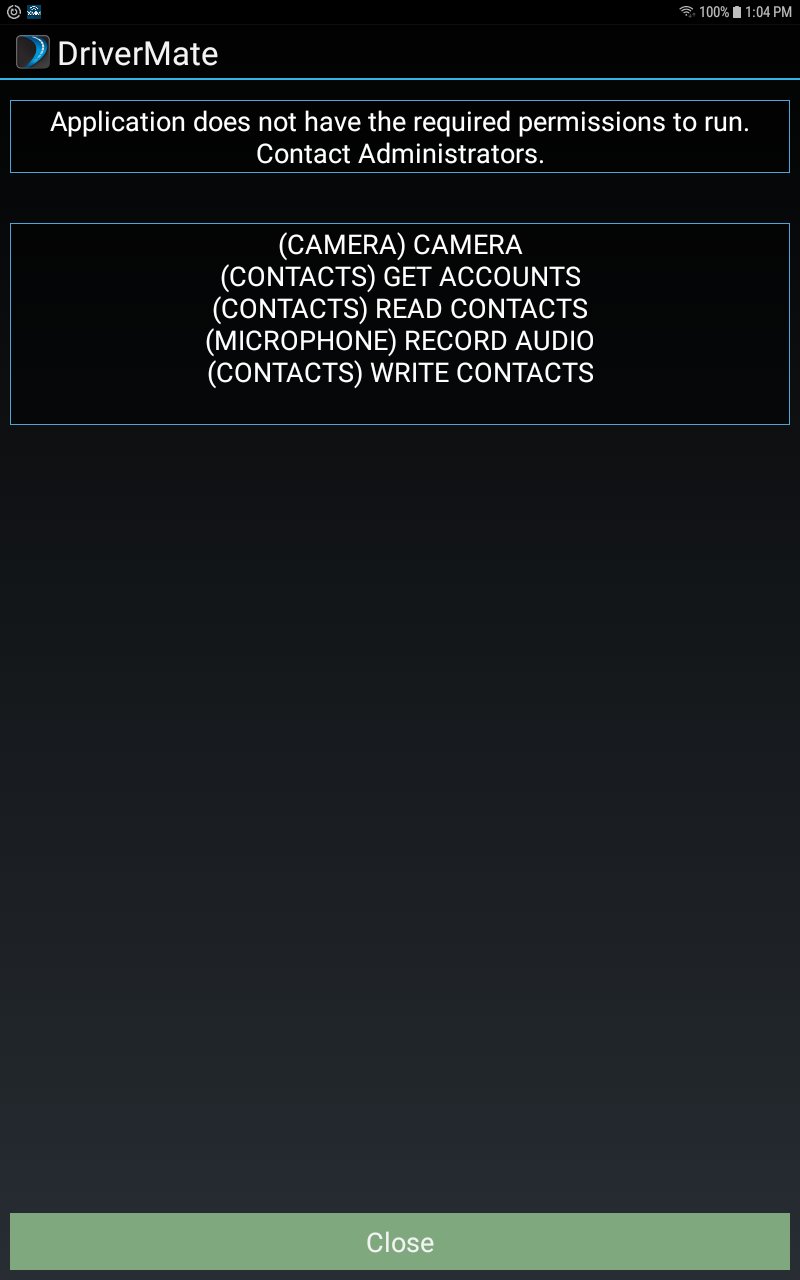
If your permissions are not set properly, the application may close itself.
Contact your administrator before driving if your permissions are not set correctly.