
Defining Activity Costs
Activity cost rules are used to describe the costs incurred at each activity.
Before you begin
About this task
When calculating activity costs, values defined in rate profiles are applied to the dwell time. If additional mobility aids are needed to transport a client, additional costs can also be charged to transport the client. See Defining Rate Profiles.
Time periods are required to define activity costs (see Defining Time Periods). If there are no pricing differences throughout the day, define a time period of 0:00 to 24:00 to indicate that all of the rules apply to all time periods.
Procedure
- In the Contract frame, click the contract for which to define activity costs.
- In the Validity frame, select a validity in the grid.
-
Click Edit.
The buttons in the Validity frame become available.
-
Click Activity cost.
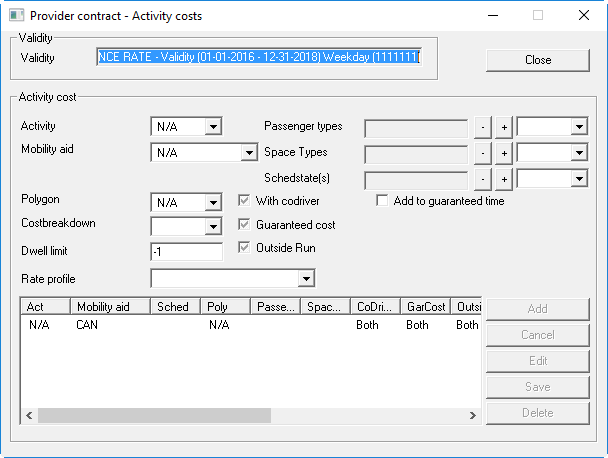
The Provider contract - Activity costs dialog box appears.
-
In the Activity Cost frame, provide the following information as
needed:
- Activity
- Click the activity code that the provider contract is for. See Activity Codes for a list and description of activity codes.
- Mobility aid
- Click the mobility aid needed by the client.
- Polygon
- Click the polygon associated with the activity.
Polygons listed here are defined for the Para Service Area selected in , on the Profile tab, in .
- Cost breakdown
- Click the cost breakdown type.
- Passenger types
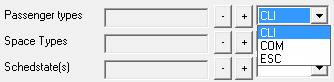
- Click the passenger type and then click the plus sign button
(+) beside the menu.The selected type is shown in the Passenger type field. Add more types as needed. To remove a type, click the minus sign (-) button.
- Space Types
- Click the space type, and then click the plus sign (+) button. The selected type is shown in the Space Types field. Add more types as needed.
- Schedstate(s)
- Click the schedule status of the activity to determine whether the calculation is
performed from the scheduled time, the arrive time, or the depart time, which can
greatly impact hourly charges.
Having no schedule status means that the rule applies for all schedule statuses.
Set a schedule status only when different rules need to be applied for specific schedule statuses.
- With codriver
- Select whether the trip cost should be calculated only if the trip has a co-driver (no check mark = no, black check mark = yes, gray check mark = this setting is ignored).
- Add to guaranteed time
- Select whether to add any time computed to the guaranteed time for the run.
- Outside run
-
Select whether to cost times outside of the scheduled start and end times of the run (that is, any time that counts towards a RnE or RnL violation) (no check mark = no, black check mark = yes, gray check mark = this setting is ignored).Note: The Guaranteed cost check box is no longer used; guarantee costs are set in the Segment Cost dialog box (no check mark = no, black check mark = yes, gray check mark = this setting is ignored).
- Rate Profile
- Click the profile that determines the actual pricing of any trip that meets the specified criteria.
- Dwell limit
- Change the value, which is -1 by default, in the Dwell limit field to 0 if the time charges apply to time taken to perform the activity. The cost calculation in the selected rate profile applies to the time between the arrive time and depart time that is in excess of the specified amount. If set to -1, the time charges do not apply.
- Click Add.