
Defining Run Costs
Run costs are paid to providers based on a minimum amount of distance, time, or bookings performed.
Before you begin
About this task
This allows you to set up banded rates (rates that vary depending on the number
of units). For example, you can set up a cost-per-mile scenario like the following:
- 1 to 10 miles = $2 per mile
- 11 to 20 miles = $1.80 per mile
- 21 to 40 miles= $1.50 per mile
- 40+ = $1 per mile
If you need to define a minimum guaranteed rate for banded mileage calculations, it can be applied using the Banded Guaranteed Flat Rate and Banded Max Empty Time fields in the Validity frame on the main Provider Contracts dialog box.
Procedure
- In the Contract frame, click the contract for which to define run costs.
- In the Validity frame, select a validity in the grid.
-
Click Edit.
The buttons in the Validity frame become available.
-
Click Run Costs.
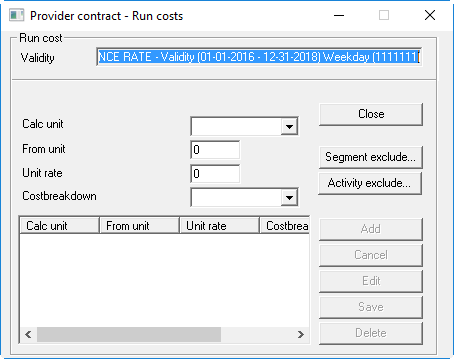
The Provider contract - Run costs dialog box appears.
-
Provide the following information:
- Calc unit
- Click the unit of measure being calculated: distance (measured in meters), time,
or bookings.
If time is used, the calculation takes the sum of the time in motion from each event’s ETD to the next event’s ETA.
- From Unit
- Type the starting unit amount to begin calculating the rate.
For example, 0.
- Unit rate
- Type the rate to charge per unit.
For example, $1 per mile.
- Costbreakdown
- Click the cost breakdown type to apply.
- Optional:
Define the segments that should be excluded from run costing rules:
- Optional:
Define the activities to be excluded from the costs of operating this run:
- Click Add.