
Viewing Client Eligibility Rules
Clients can be defined as eligible for service if the trip being created meets one or more specifically defined eligibility conditions.
Before you begin
About this task
If travel rules based on eligibility conditions have been set up for clients, Trapeze recommends reviewing the client's eligibility conditions before scheduling any trips.
Procedure
- In the Client field, search for the client’s name.
-
Click the Client Eligibility Rules button:

The Client Eligibility Rules dialog box shows all eligibility conditions assigned to the client and lists all travel conditions assigned to the client.Each set of rules fall under a specific eligibility condition and is separated by a dotted (…) line.
The Comments field in the Client Eligibility Info dialog box is the same comment shown in the Elig. comm field in the Detail tab if the property in , on the Profile tab, under is set to Yes. Otherwise, the Elig. comm field is not shown on the Detail tab.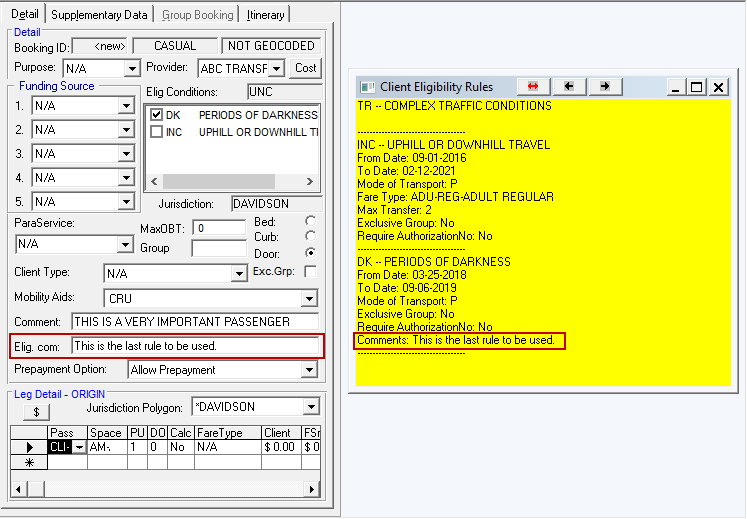 This text is entered in Client Registration (), on the Eligibility tab, in the Comment field of the selected eligibility rule.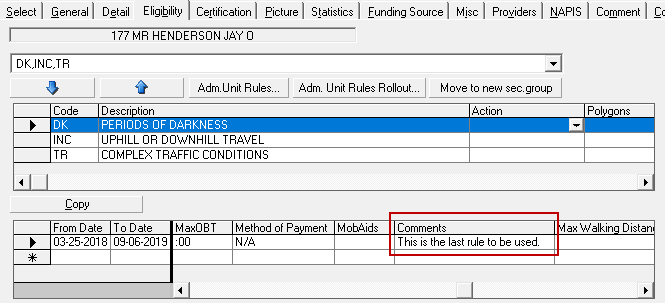
- Optional:
To change the opacity of the Client Eligibility Rules dialog box,
do the following:
The background made completely transparent so that the active screen can be viewed through it.
- Click the right-pointing arrow to increase the opacity of the background.

- Click the left-pointing arrow to make the background more transparent.

- Click the right-pointing arrow to increase the opacity of the background.
- Optional:
To change the color and transparency of the Client Eligibility
Rules dialog box, do the following:
- Click .
- Click .
- On the Clients tab, click Client Eligibility Info.
- Update any of the following settings:
- Background Color
- Client Eligibility Info Sorting Order
- Foreground Color
- Transparency Level
.