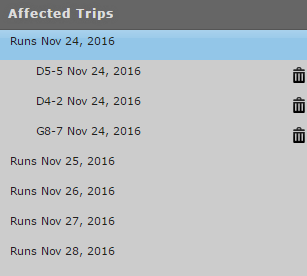
Viewing Affected Runs and Run Itineraries
When viewing affected runs and run itineraries, client trips cannot be canceled in the Runs grid.
Before you begin
About this task
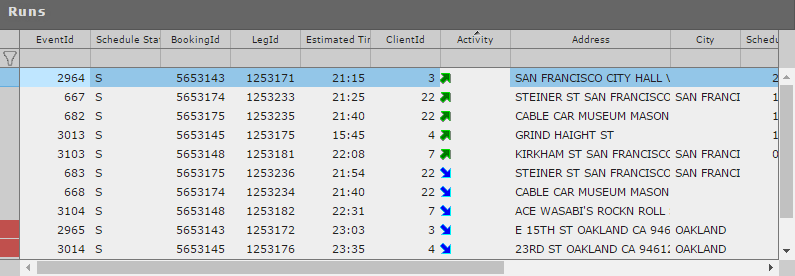
Affected trips in a run itinerary are indicated by a colored row header.
In the following example, the two trips have been affected by an incident:
Procedure
- In the Trip Management step, click the Affected Trips tab.
-
Perform one of the following tasks:
- On the Affected Trips tab, right-click on a client trip and click Show Itinerary to view the run itinerary on which the trip is scheduled.
-
In the Runs pane in the lower half of the screen, double-click the row of a run to view its itinerary.
- The Runs grid is replaced with the selected run's itinerary, and the run ID is listed in the Runs pane. Click the red X to close the run itinerary.
-
To view another run's itinerary, click a Runs option in the
Affected Trips pane, then double-click a run in the lower-right
pane.
The run is added to the Affected Trips pane.