
Viewing and Canceling Affected Trips
Trip can be viewed and then canceled as needed in TRR.
About this task
- It is removed from the run, and its run ID is changed to 0.
- Its status in the Schedule Status column is changed from S
(Scheduled) to the cancellation code defined for TRR.
Cancellation code are defined in the Trapeze4 Workstation under , on the User Defined Cancel Codes tab.
The TRR cancellation code must be one of these codes, and is defined in a specific context property:
Any changes made to a client trip and its run in the Trapeze6 Web GUI are also
reflected in the Trapeze4 Workstation. For example, the following image shows that a client
trip has been canceled, and its Schedule Status has been changed from
S to TR: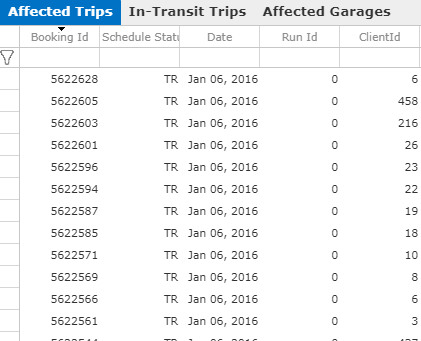
In Trip Administration in the Trapeze4 Workstation, a trip is shown with a
cancellation code in the Stat column:
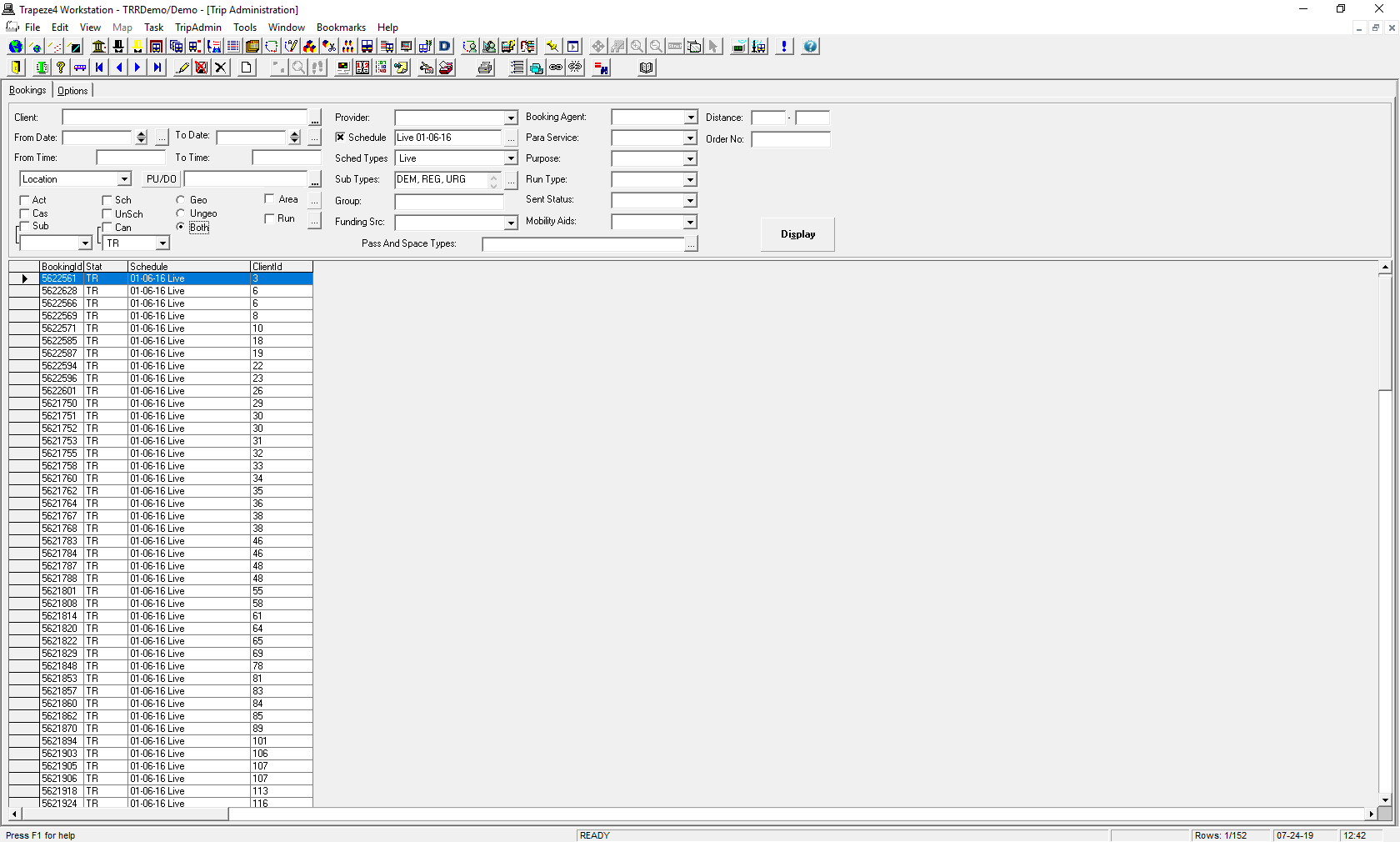
![The Trapeze4 Workstation open to Trip Administration showing a TR cancellation code in the Stat column.]()
Procedure
-
Click the Main Menu button:

- Click Manage Incidents.
- Search for or create an Incident record.
- Ensure affected data has been loaded.
- Click the Trip Management step:
- Click the Affected Trips tab and review the affected trips.
-
To cancel an affected trip, right-click the row, and then click
Cancel.
To select multiple trips, press Ctrl while clicking the trips.
To select all trips, press Ctrl + A, or click the empty corner square in the column heading row above the filter icon. Right-click and click Cancel.
The status of the trip(s) in the Schedule Status column is changed to the corresponding Rapid Response cancellation code. - Optional:
On the Client Management step, refresh the
Clients tab as needed if priority areas have been added or
modified by clicking the Client Priority Refresh button:
