
Adding Contact Information
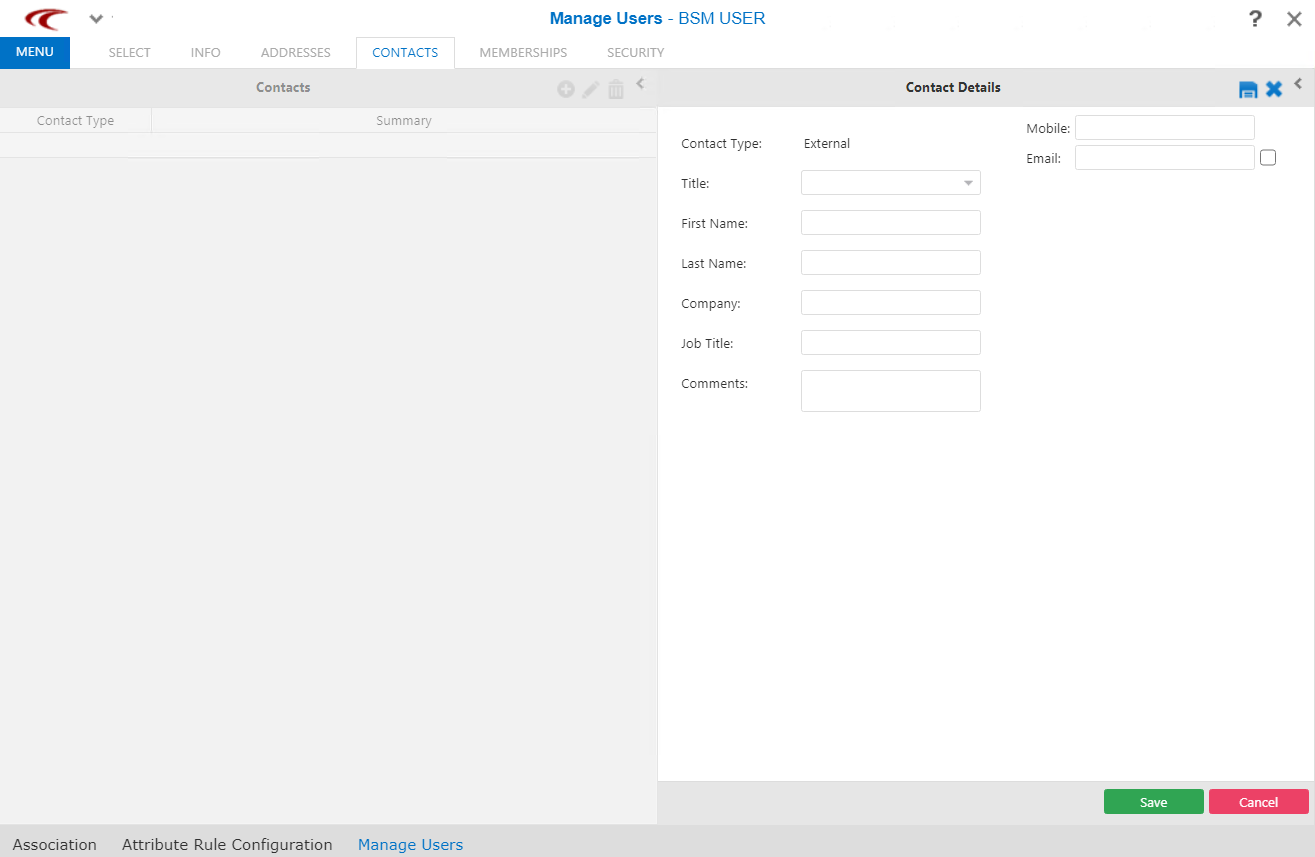
You can add the basic information of the user using the Contacts pane of the Manage Users screen.
-
Open the Contacts tab.
-
Perform one of the following steps:
- On the screen toolbar, click the Add Contact button:

- On the shortcut menu, click New and select the contact type you want to add. for example, External Contact.
The fields in the Contact Details pane are activated. - On the screen toolbar, click the Add Contact button:
-
Fill in the following fields:
- Contact Type - Automatically filled in when you select the contact type after clicking New.
- Title - Appellation indicating status of contact, for example, Mr.
- First Name - First name of the user.
- Last Name - Last name of the user.
- Company - Name of the organization to which the user belongs.
- Job Title - Position of the user in the organization.
- Comments - Any additional information on the user.
- Mobile - Mobile phone number of the user.
- Email - Email address of the user. If the check box is selected, the preferred communication method of the user is by email.
- Click Save.
- Click Save in the Contacts pane.
- Click Next.
- Optional: Click Next to proceed with adding other information.