
Adding Membership Information
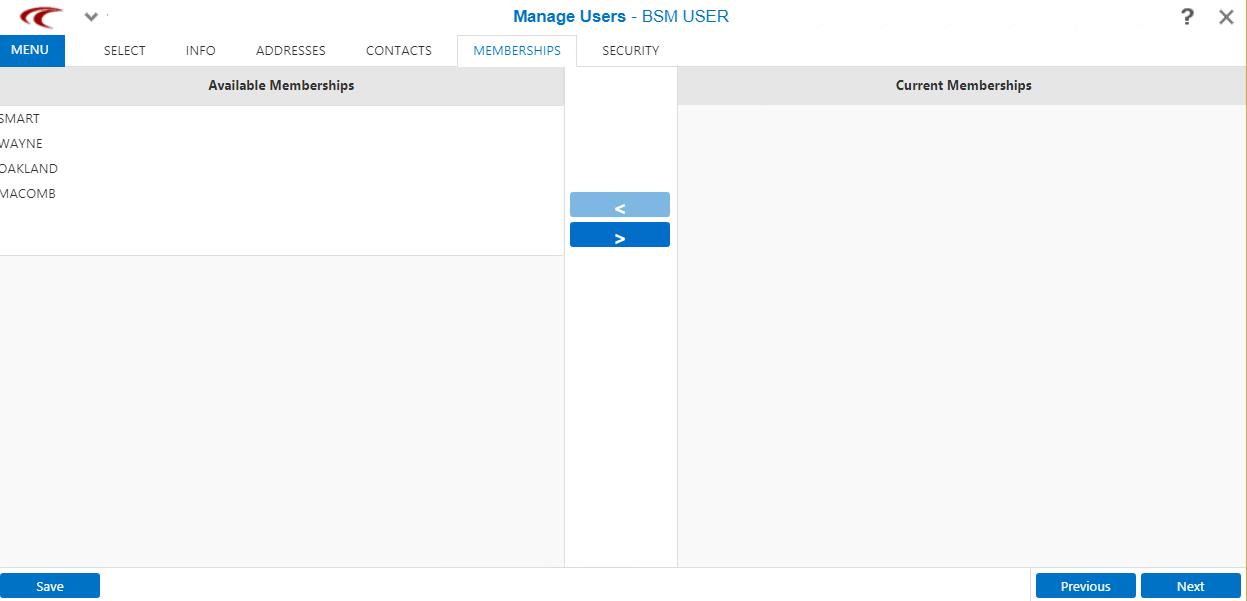
You can assign a user to a group using the Available Memberships and Current Memberships panes of the Manage Users screen.
-
Open the Memberships tab:
-
In the Available Memberships pane, select the appropriate group,
company, or institution and click the rightward arrow.
The selected membership is moved to the Current Memberships pane.
- Optional: To remove a group, company, or institution to which a user belongs from the list, select it from the Current Memberships pane and click the leftward arrow.
- Click Save.
- Optional: Click Next to proceed with adding other information.