
Adding Buttons to Toolbars
Except for the Menu bar, you can modify the content and appearance of toolbars.
-
Click .
The Customize dialog appears.
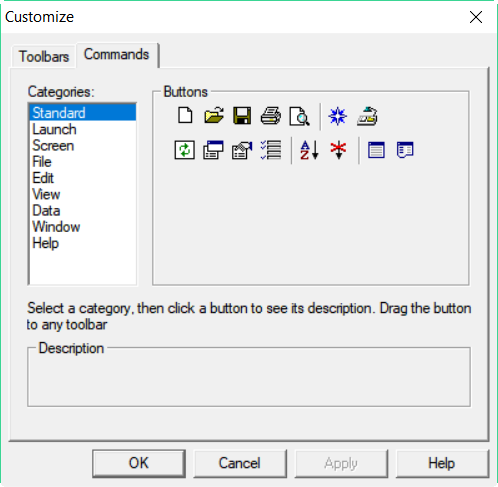
- Open the Commands tab.
-
Select a category from the Categories field. In the example,
Standard is selected.
The Standard commands appear in the Buttons frame.
-
To see the description of a button, click the button you want.
The button is shown with a gray border and a description appears in the Description frame of the dialog.
- Click and drag the button you want to add to a toolbar in your workspace.
- Click Apply.
- Click OK.