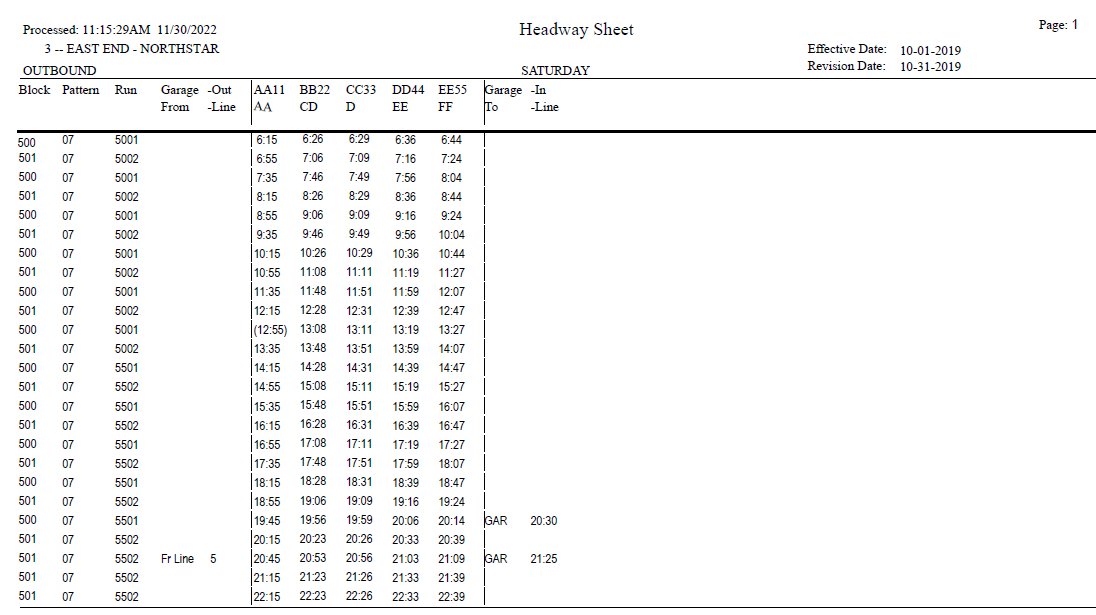
The Headway Sheet provides a list of the trip times for specific lines by direction and services. It also provides block and run detail, garage pull-in/out, to and from line (interlining detail).
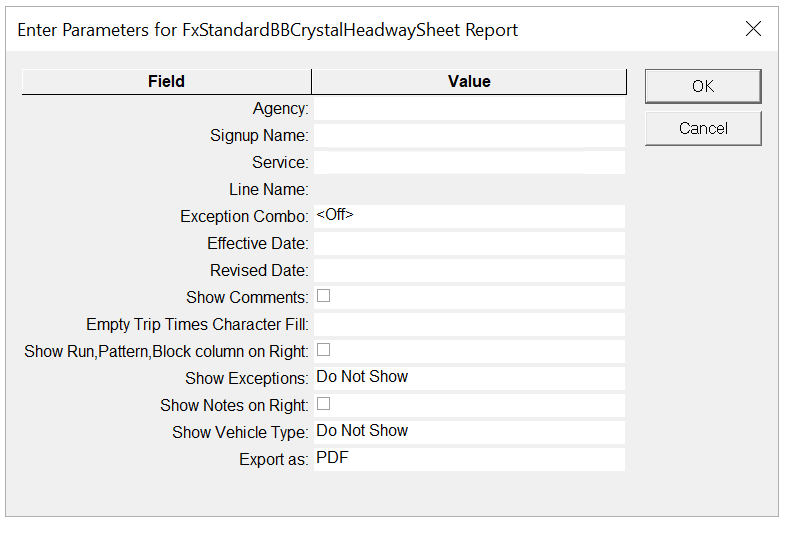
The following graphic shows the Headway Sheet parameters:
Parameter
Description
Agency
Agency code
Signup Name
Name of sign-up period.
Service
Service abbreviation
Line Name
Line number. This field is enabled after you select the Signup Name.
Exception Combo
Selected exception combination. This is set to <Off> by default.
Note: The
Exceptions column is not shown on the report if there are no exception
trips.
Effective Date
Information related to the period when the report is in effect.
Note: This is
a text field. You can enter any piece of data you want to include in the report,
for example, date or name of user.
Revised Date
Information related to the period when the report is revised.
Note: This is a
text field. You can enter any piece of data you want to include in the report,
for example, date or name of user.
Show Comments
If selected, the comments associated with the trips in the headway are shown
at the bottom of the report.
Empty Trip Times Character Fill
Allows you to set the character that is shown in the report if there are no
trip times instead of an empty field, for example, a dash (-) .
Show Run, Pattern, Block column on Right
If selected, the Run, Pattern, and Block columns that appear on the leftmost
part of the grid also appear on the rightmost part of the grid.
Show Exceptions
Allows you to choose whether you want to show Exceptions associated with the
trips and where they are to be shown in the report. The options are:
Do Not Show
Left Margin Only
Both Margins
Show Notes on Right
If selected, the Notes column is shown on the right side of the grid.
Show Vehicle
Type
Controls where the vehicle type information is shown in the Headway Sheet. If
selected, users can choose from the following options:
None - If selected, no vehicle type information is
included in the report. This is the default.
Left Margin Only - If selected, the vehicle type
information is shown on the left section of the report. The Vehicle Type
column is shown between the Exc (Exceptions) column (if shown) or the Run
column and the Garage From column.
Both Margins - If selected, the vehicle type
information is shown on the left and right sections of the report. In the
left section, the Vehicle Type column is shown between the Exc (Exceptions)
column (if shown) or the Run column (if Exc column is not shown) and the
Garage From column. In the right section, the column is shown after the In
Line column.
Export As
Allows you to select the format type of the report:
CSV (Comma-separated values file that is read with spreadsheet program)
Excel (Microsoft spreadsheet)
PDF (Read with Adobe Reader)
RTF (Rich Text Format)
WORD (Microsoft Word)
The following graphic shows an example of a headway sheet: