
Changing Report Settings
To change the report settings set by default, for example, you no longer want a report to run automatically, use the Report Settings feature.
-
With the BlockBuster screen open, click .
A tab opens with a blank Crystal Reports screen.
-
Do one of the following steps:
- Press CTRL + R.
- Click the Settings button:
 .
.
The Report Settings dialog appears.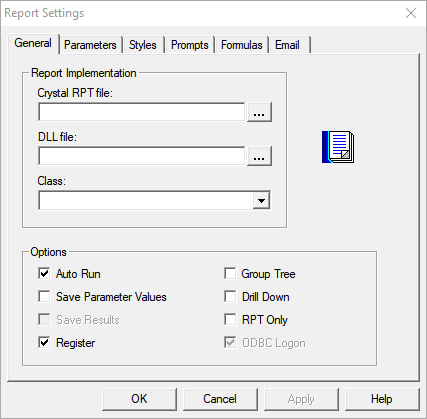
- In the DLL file field, click the ellipsis button. In the Select File dialog, select FxStandardBBCrystal.dll (for Crystal reports).
- Optional: In the Crystal RPT file drop-down list, click the Crystal report you want. (This field is only shown when you choose to open Crystal Reports.)
- In the Class drop-down list, click the report you want to open. (This should match the selected Crystal RPT file if working with Crystal reports.)
- Optional:
In the Options pane, select the options you want to apply on the
reports that you choose to open. When you select a checkbox, the system performs the
action described.
-
Auto Run: If selected, the report is automatically run when you launch the Reports screen. This is selected by default.
-
Save Parameter Values: If selected, values that you set for the selected parameters are saved.
-
Save Results: If selected, the report is automatically saved.
-
Register: If selected, the dll file is registered. This is selected by default.
The following options are shown only for Crystal reports:
-
Group Tree: If selected, the reports are arranged into groups.
-
Drill Down: If selected, filters are applied to add more detail to the report.
-
RPT Only: If selected, only the report layout files are opened; other files such as SQL queries are not opened.
-
ODBC Logon: This is selected by default and enabled when you select RPT Only.
The following options are shown only for text reports:- Export to File: To export the report into a text file, select the checkbox and click the blank field. Click the ellipsis button. In the Select File dialog, type a name for the text file, and then click Open.
- Filter out of control characters - If selected, the style settings, for example, bold type applied to column headings, are not included when the file is exported. (This option is enabled when you select the Export to File checkbox.)
-
- Click OK.