Place text in quotation marks for exact match search results.
Adding Deadheads
You can add deadheads on the Deadheads tab of the
Blocking screen.
If Interline deadheads are currently selected in your filter, only the abbreviations of
nodes appear in the From (Source) and To
(Destination) menus on the Add tab. If you choose to look at Garage
deadheads on these tabs, the abbreviations of both garages and nodes appear on the
From and To fields.
In a multi-agency
environment, you can create garage deadheads using a garage of one agency and a node of
another agency, if necessary.
On the Deadheads tab, click the Edit button:
.
The Edit dialog box appears. The Add
tab is open by default.
In the From list, select the node or garage
you want.
In the To list, select the node or garage you want.
Optional: If the deadhead you are adding is line dependent, type the applicable lines in the
Fr. Line and To Line fields.
To add multiple time intervals for the deadhead pair, click the By
Node option.
The To time of the last time interval you created is automatically entered in the
Fr.Time field. This avoids creating overlapping time
intervals.
Optional: To use only one time interval for the deadhead pair, click the By
Time option.
Use this option if you use one time interval for the whole workday such as from 0:00
to 26:00.
In the Fr. Time and To Time fields, type
the applicable start and end times of the interval you want.
Optional: In the Dhd Time field, type the applicable deadhead time.
Optional: In the Distance field, type the applicable distance of the
deadhead.
You can use the Calculate tab to calculate the time and distance
of the selected pair.
Optional: Perform any of the following steps:
If the time and distance between the From and To locations are the same in both
directions, select the 2 Way check box.
If your transit site uses Pre and Post Layovers, select the Pad Pre
LO check box, and then type the applicable values in the Pre
LO and Post LO fields. (These options are only
activated if the Use Pre and Post Layovers user-defined property
is set to Yes. The Pre LO, Post
LO, and Pad Pre LO columns are also displayed in
the grid.
Select the Start Rlf or End Rlf check
box depending on where the deadhead will be applied.
These options are only shown if the Use Deadhead Reliefs
user-defined property is set to Yes. The
StartRlf and EndRlf columns are also
shown in the grid.
Click Add.
The deadhead is added to the grid in the lower section of the dialog box.
Optional: To create more deadheads if necessary, repeat steps 2
to 11.
Click Apply.
The Select Service Groups dialog box appears.
Note: This dialog box only appears if you are using
service group dependent deadheads.
Optional: To assign the deadheads to the appropriate service groups, select the service groups
you want and click OK.
Click Close.
If you click Close without applying your information, a message
prompts you to click Yes to save the data. Click
No to proceed with closing the dialog box, or click
Cancel to keep it open.

 .
The Edit dialog box appears. The Add tab is open by default.
.
The Edit dialog box appears. The Add tab is open by default.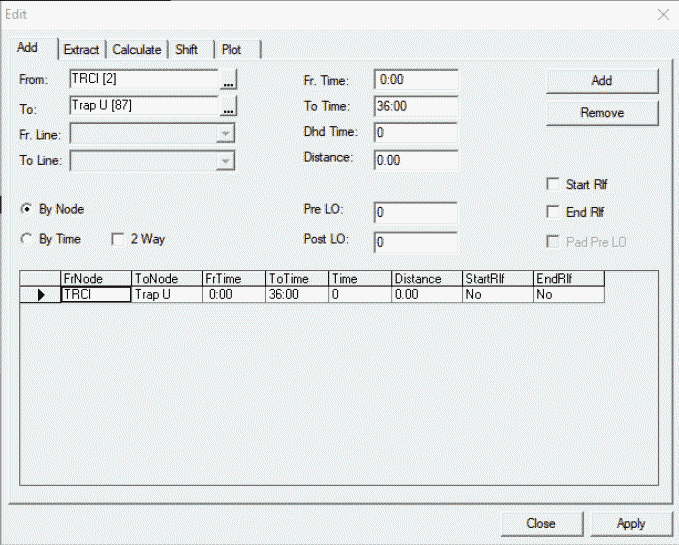
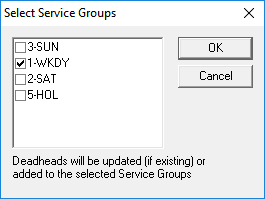 Note: This dialog box only appears if you are using service group dependent deadheads.