Place text in quotation marks for exact match search results.
Extracting Deadheads
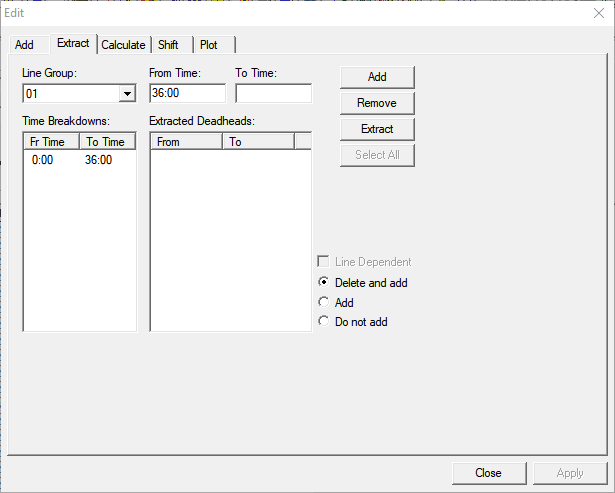
Extracting allows you to create deadheads based on which ones may be needed according
to your trip data.
Depending on the type of deadhead you chose on the Deadheads screen filter criteria, the
Extract tab shows either a list of Line Groups
(for Interline deadheads) or a list of Garages (for Garage deadheads)
in the field on the top right section of the dialog box. The drop-down list is labeled
appropriately depending on the selected type of deadhead.
On the Deadheads tab, select the type of deadhead from which you
want to extract: Interline or Garage.
Click the Edit button: .
The Edit dialog box appears.
Click the Extract tab.
The Delete and add option is selected by
default.
Choose the line group or garage whose deadheads you want to extract from the list on
the top right section of the dialog box. type (labelled Line Group
or Garages accordingly). If you selected
Interline on the Deadheads tab, the list shows Line
Groups and if you selected Garage, the list
shows Garages.
In the From Time and To Time fields, type
the applicable times.
Click Add.
The time interval appears in the Time Breakdowns frame.
The To time of the last time interval you created appears automatically in the
From Time field. This automatic feature makes it more
convenient to add consecutive time intervals. If you prefer another From time, overwrite
the automatic entry.
To create other time intervals, repeat steps 3
to 6.
Optional: To remove a time interval from the Time Breakdowns frame, select
the interval you want to remove and click Remove.
Click Extract.
The system looks at your trip data, determines which deadheads are potentially
needed, and adds them to the Extracted Deadheads frame.
Select the deadheads you want to extract or click Select
All.
The selected deadheads and the times they are associated with are
highlighted.
Depending on how you want to apply the extracted data, select the appropriate
option:
Delete and add- If there are any overlaps in the time
intervals, the system deletes the old node to node or garage to garage pairs and adds
the new pairs.
Add - If there are any overlaps in the time intervals, the
system adds the new node to node or garage to garage pairs but does not remove the old
pairs.
Do not add- If there are any overlaps in time intervals, the
system does not add the new node to node or garage to garage pairs.
These options work in the same fashion as the options on the
Extract tab of the Node to Node Edit dialog
box in the Trip Building screen.

 .
The Edit dialog box appears.
.
The Edit dialog box appears.