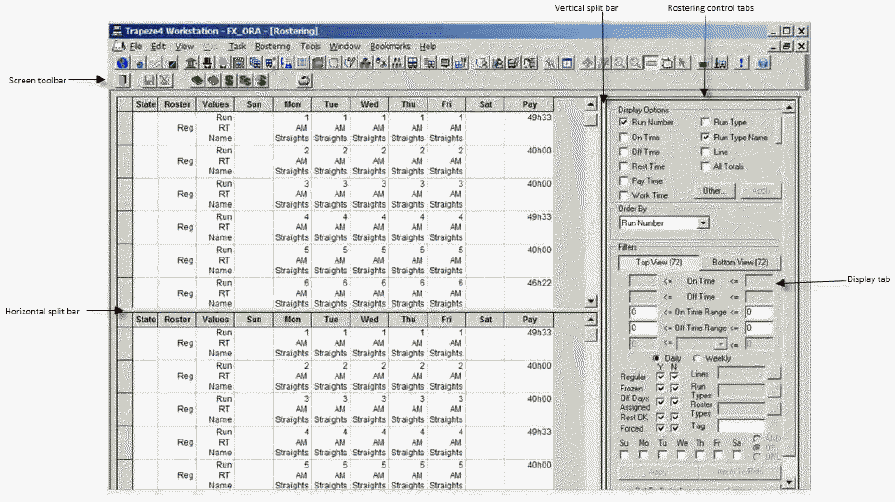
You can create weekly work for all services in a division using the
Rostering screen.
The screen is divided into two sections. The two grids in the left section of the
screen contain the same data based on the current context. They allow you to
conveniently work with the data. For example, the data remains static in one grid
while you work on the same data in the other grid. You can later compare the two
grids. After you apply the changes you make, both grids will display the same data
again.
To open the Rostering screen, do one of the following steps:
Click Task > Rostering.
Click the Rostering button:
Note: When you open the Rosters screen, a warning message appears if the rosters
contain inactive runs. You are prompted to reload the runs or change the
active scenario. This is important to do prior to importing rosters to
Trapeze OPS.