
Creating Rosters Based on Off Days
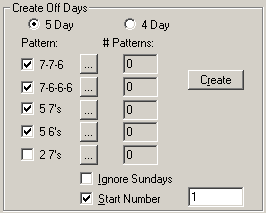
The Create Off Days frame on the Auto tab allows you to create 5-day or 4-day rosters depending on what your transit site uses.
In general, a 5-day roster is composed of five daily eight-hour runs with two consecutive or non-consecutive Off days. A 4-day roster is composed of four daily ten-hour runs with three consecutive or non-consecutive Off days.
The following procedure aims to illustrate combining Off days to create 5-day rosters using the Create Off Days options:
-
In the Create Off Days frame, for 5- Day rosters, select the
Pattern options that you want.
-
Beside the pattern you want to configure, for example, 7-7-6,
click the ellipsis button:
 The Create Parameters dialog box appears.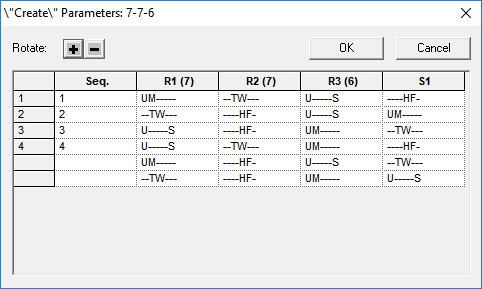
-
To arrange the sequence of the pattern options using the selected pattern, perform one
of the following steps:
- Click a record and click the appropriate Rotate button. Click the plus sign to
increase or the minus sign to decrease the Sequence (Seq.) number of a pattern
option:
 Note: If you do not select a record, the change is applied to the first option with the Sequence number of the other options adjusted accordingly.
 - In the Seq. field, type the number of the option as you want it sequenced.
- Click a record and click the appropriate Rotate button. Click the plus sign to
increase or the minus sign to decrease the Sequence (Seq.) number of a pattern
option:
- Click OK.
- For each of the selected patterns, repeat steps 2 to 4.
- If your transit site does not combine Sundays with your roster, select the Ignore Sundays check box.
- To customize the number with which you want your rosters to begin, type the value in the Start field.
- In the Create Off Days frame, click Create.
-
In the Combine On Days frame, click Combine
to process the Off days you just created.
The system chooses the consecutive Off day combinations first and if necessary, applies the non-consecutive Off day combinations secondly.
The number of times that a pattern was processed appears in the # Patterns field beside each option in the Create Off Days frame.
Rosters that the system could not process are shown on the top left of the Roster grid.
-
To see if there are any remaining runs that have not been rostered, click or click the Costing Summary button:
 In most cases, you may be left with one or two 6 or 7-day rosters, which you can roster manually.Note: You can also perform this procedure in creating 4-day rosters.