
Loading Rosters
You can load rosters from the file using the options provided.
Note: When loading a roster file, make sure it is for the same division in your current
context.
- Click .
-
From the Open dialog box, select the roster file that you want and
click Open.
The Load Rosters dialog box appears.
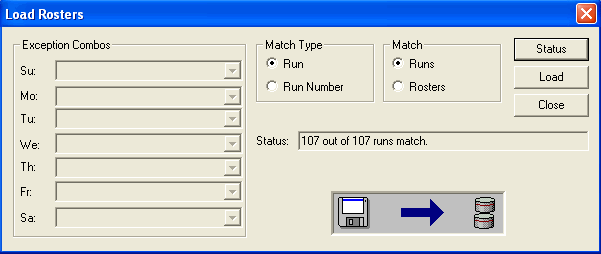 Note: The Load Rosters dialog box allows you to load a different exception for each day of the week. These weekday exception fields are only enabled for clients using BlockBuster and when the rosters match by run number. Contact your Trapeze representative for more information.
 -
(If applicable) Depending on the data you require, select a combination of options in the Match Type and Match frames and click Status.
The Status field indicates the number of matches, for example, the Load dialog box, (see the graphic in step 2) shows an example where the Runs options are selected in both frames and that all 107 runs match.
- Click Load. The data is loaded into the Rosters screen. If you prefer not to load the rosters because not all runs or rosters match, click Close.