
Adding Extra Work
Extra work may involve cleaning or maintenance duties to help complete a weekly roster. You can add extra non-runcut work to a roster.
-
Click . The Add Extra Work dialog box appears.
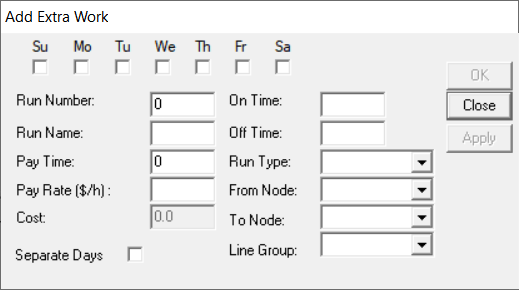
- Select the check boxes of the days in which you want to create extra work.
- In the Run Number field, type the run to which you want the extra work to apply.
- In the Run Name field, type the name of the run to which you want to apply the extra work.
- In the On Time and Off Time fields, type the time interval in which you want the extra work done.
-
Perform any of the following steps as applicable:
- In the Pay Time field, type the appropriate amount of time for which the transit site pays for extra work.
- The system calculates the cost of the extra work based on this value.
- In the Run Type list, select the appropriate run type.
- To place the extra work in separate rosters, select the Separate Days check box.
- In the From Node and To Node lists, select the appropriate nodes to which you want the extra work to apply, respectively.
- In the Line Group list, choose the line group to which you want to apply the extra work.
- Click Apply.
- Click OK.
- Click Close.