
Viewing Accrual Balances on Larger Screens
You can view accrual balances by accrual type.
- In the navigation bar, select Absences.
-
At the top of the page, select an accrual type.
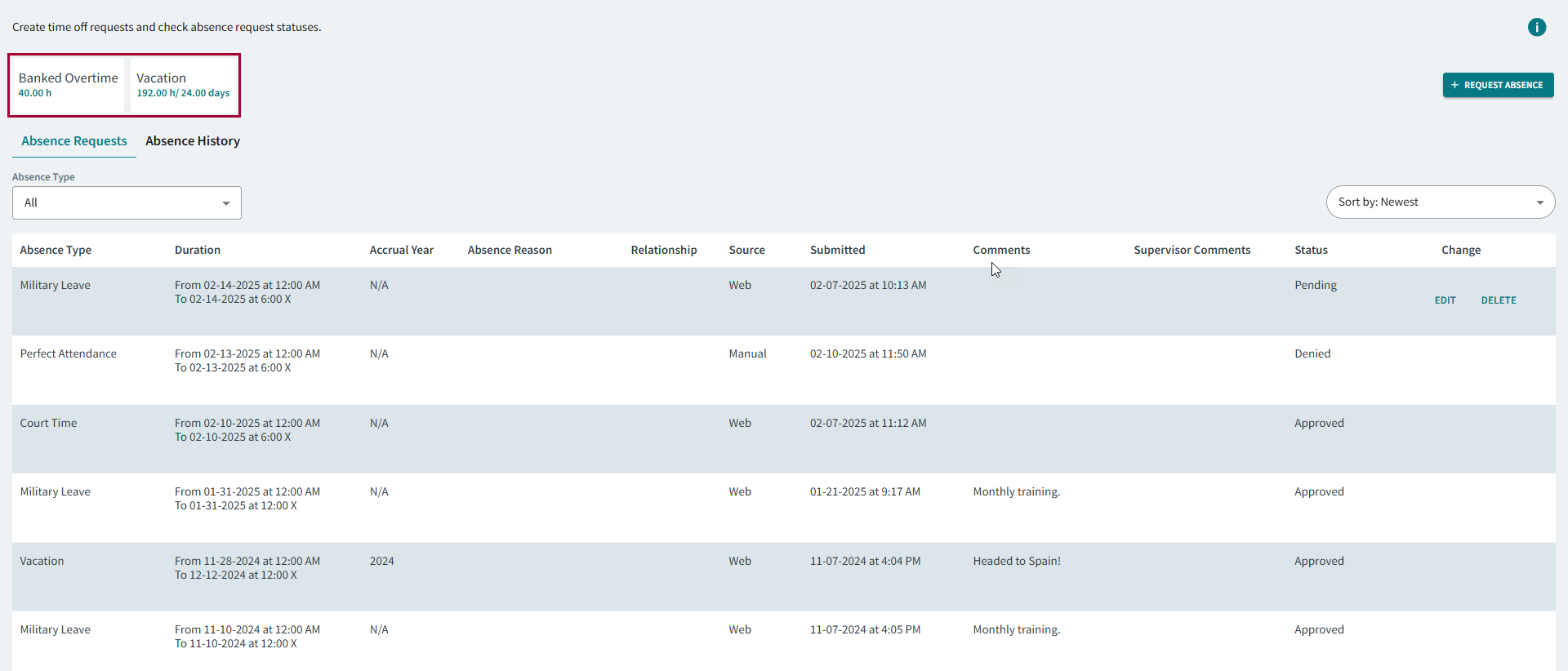
Available accrual types are selected in the property.Accrual types are sorted by name and then accrual balance year. Included years are defined as Active in the Accrual Type's Accrual Calendar in the Client Shell.
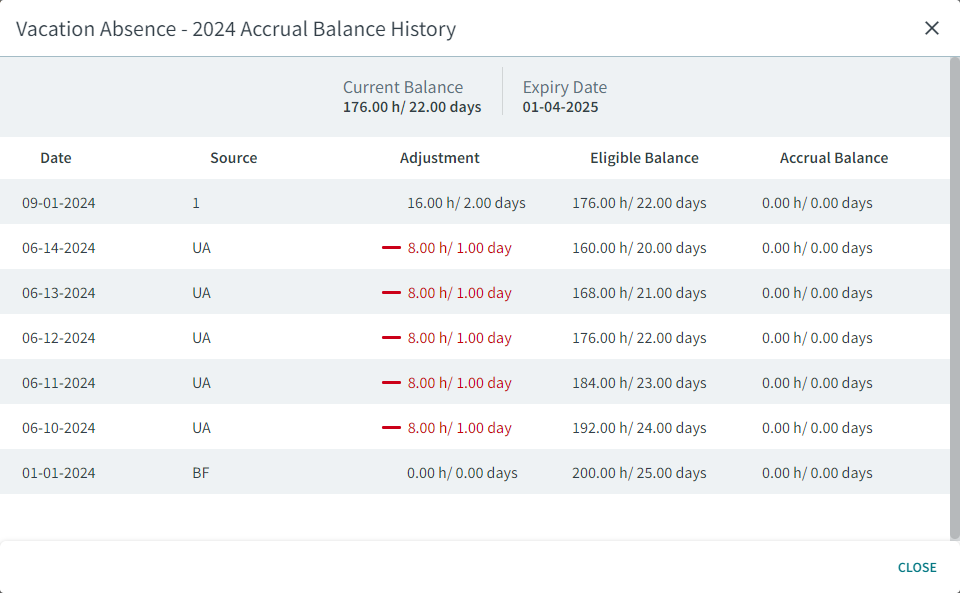
The Current Balance is the absence days available for the accrual type. The
Expiry Date is the last date to use the accrued absence
days.
Note:
Transit agency policies determine if the time
available after each transaction shows as an Eligible
Balance or as an Accrual
Balance.
Column definitions:
- Date. Date the adjustment occurred.
- Source. How the adjustment was received or used:
- BF (Balance Forward). Time was carried over. This may be from a manual or automatic generation, from the previous period, or from an import.
- UA (Absence Usage). Time was reduced based on the creation of an absence.
- EA (Absence Entitlement). Time was granted due to the creation of an absence.
- UT (Timekeeping Usage). Time was reduced based on the costing of an absence.
- ET (Timekeeping Entitlement). Time was granted due to the costing of an absence.
- UD (Pay Advance Usage). Time was paid in advance.
- ED (Pay Advance Entitlement). Time was granted to be paid in advance.
- SB (Sellbacks). Time was exchanged for pay instead of being used.
- AB (Additional Balance). Additional time was added, and is only valid on or after the Additional Eligible Balance Date defined in the Accrual Balance ancillary data screen.
- EX (Expiration). Time expired and is no longer available to be used.
- BK (Banking). Time was banked towards an accrual.
For definitions of numbered Source entries (for example, 1, 2, 3), see the Accrual Adjustment Types ancillary data screen in the Client Shell.
- Adjustment. Amount of time added or subtracted from the accrual balance.
- Eligible Balance. Current time available after the adjustment.
- Accrual Balance. Current time available after the adjustment. Whether Eligible Balance or Accrual Balance is used is defined in the property.