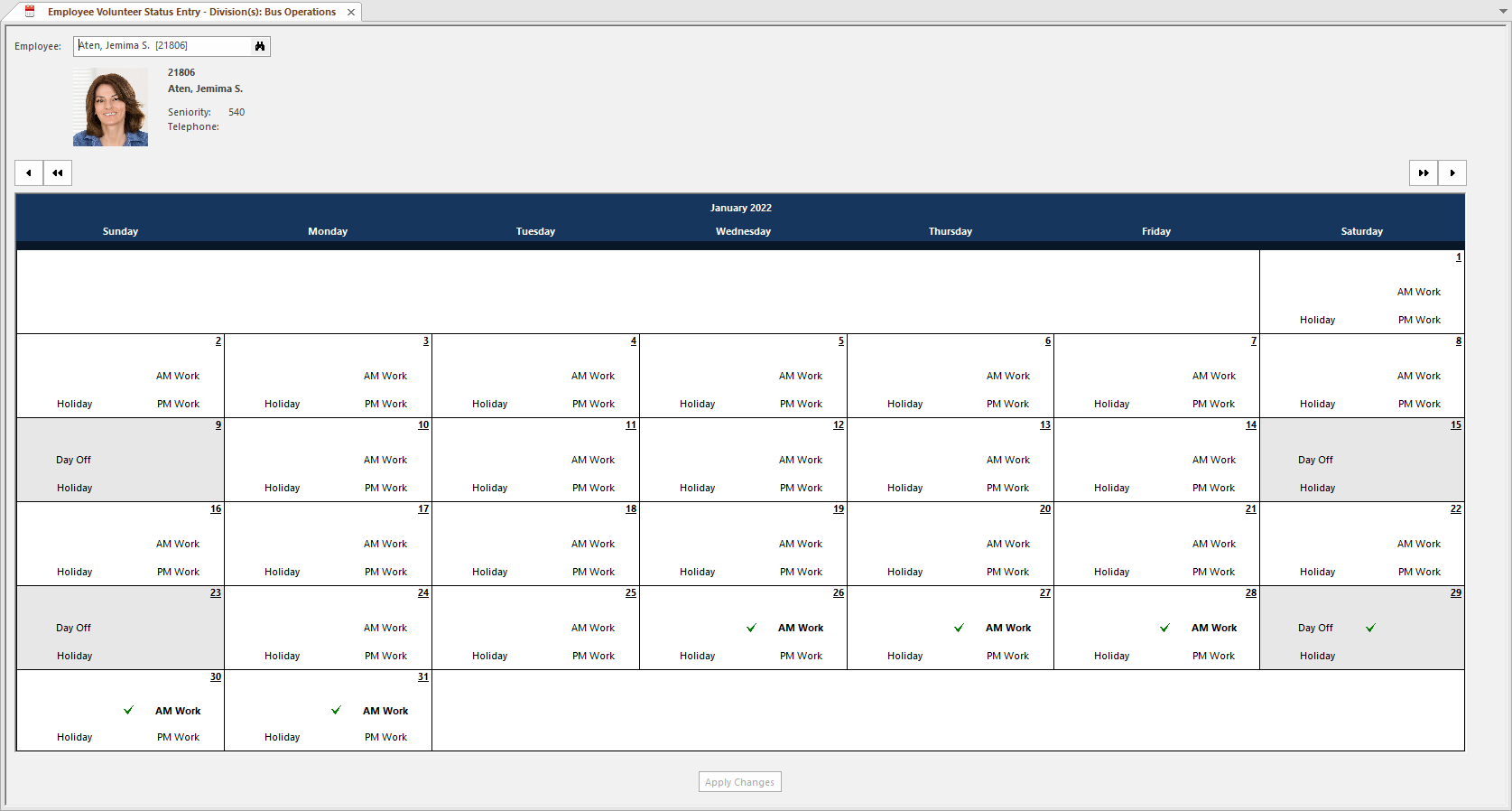
Adding Employee Volunteer Information in the Client Shell
Client Shell users can add employee volunteer information by using the Employee Profile - Volunteer screen to create and update employee volunteer records.
- In the Client Shell, open the Employee Profile screen and set the Context (F3).
- Select an employee record and then select Volunteer.
-
Do one of the following:
- To add a new volunteer record, in the detail pane, right-click and select Add New Record.
- To add a volunteer record based on an existing record, select the record
in the list pane, click in the detail pane, and select Clone
Record:

- Enter the date range for the volunteer record in the From Date and To Date fields.
-
Select a Volunteer Type.
Volunteer types valid for the date range are listed.
- In Week Template, select the days the employee is available as a volunteer.
- If applicable, select the Available Regions where the employee can act as a volunteer.
- Optional: Enter any Comments.
- Select Save.