
Updating Volunteer Information on Smaller Screens
Employees can update their volunteer information in advance of a specific days or future sign-up periods, based on system configuration.
Tip:
Trapeze recommends updating volunteer requests using larger
screens.
Transit agency policies specify whether employees can:
- see and update volunteer information
- add volunteer information for work in future sign-up periods
- change volunteer information on activated days
- delete volunteer information on activated days or for future sign-up periods
Transit agency policies also define the minimum and maximum number of days in advance employees can add volunteer information. If the request falls outside of any defined minimums and maximums, an error message appears.
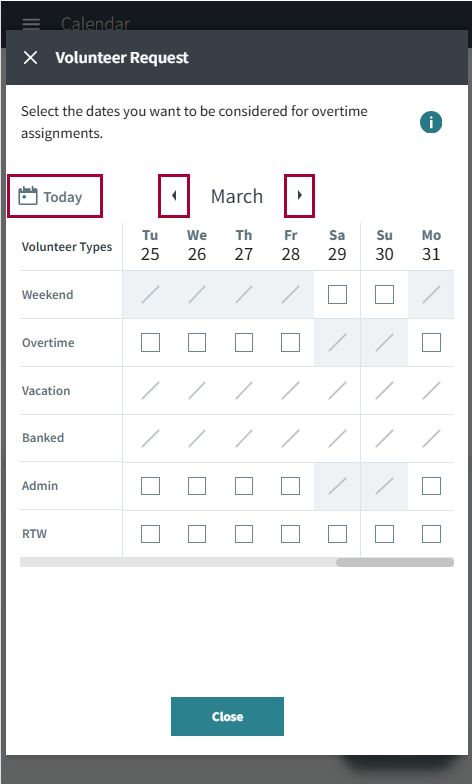
The Volunteer Request dialog shows three weeks of the calendar, with volunteer types for which you can volunteer to work. On larger screens, this is called the Volunteer Availability dialog.
- On the Calendar page, select .
- Optional:
Use the previous and next buttons to show the weeks for which to update
information. If needed, select Today to return to the
current date.
-
In the rows for your preferred Volunteer Types, select
the dates to be a volunteer.
System administrators define available volunteer types in system properties. You can see unavailable volunteer types, but all dates are marked with a forward slash and can't be selected.Depending on system configuration, you may not be able to add volunteer information for activated days.
-
Select Region Preferences and enter any
Comments.
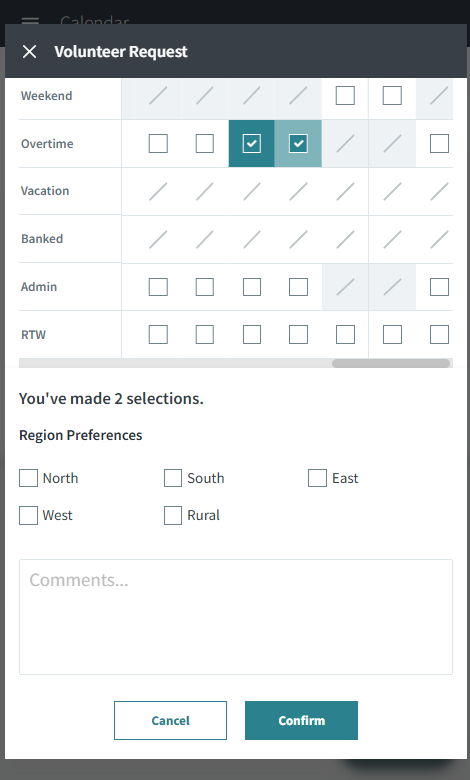
Comments and region preferences will be applied to all selected dates. If these shouldn't be the same for all dates, create a volunteer request for each variation. -
Select Confirm.
If your selected dates are outside of your transit agency's defined minimum and maximum volunteer in advance windows, an error message appears.
- Select Close.
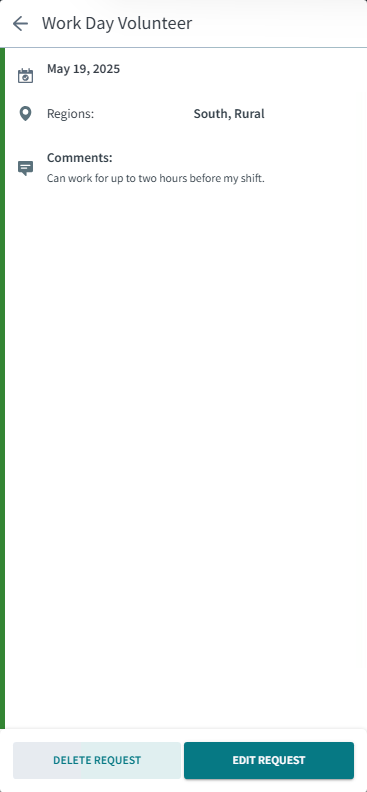
- Optional: To edit the volunteer request, select the volunteer card on the date, select Edit Request, and then update the Comments or Region Preferences. Select Update and then Close.
- Optional: To delete the volunteer day, select the volunteer card on the date, select Delete Request, and then Yes, Delete.
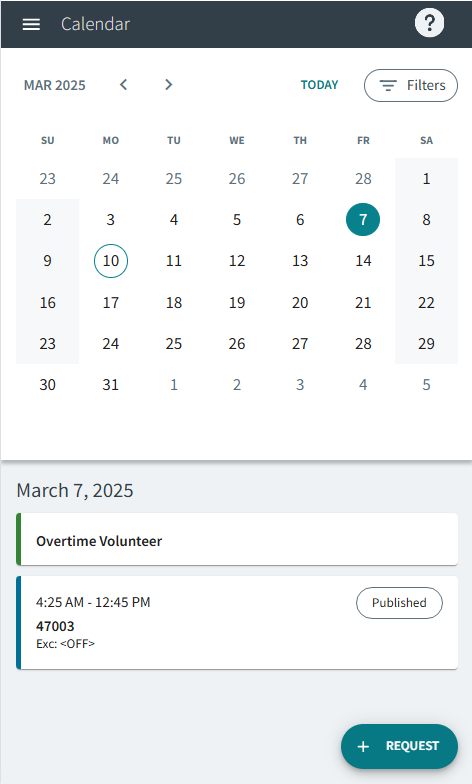
You can also check if you have been assigned volunteer work by selecting , then Volunteer. Select a specific Date and Volunteer Type.
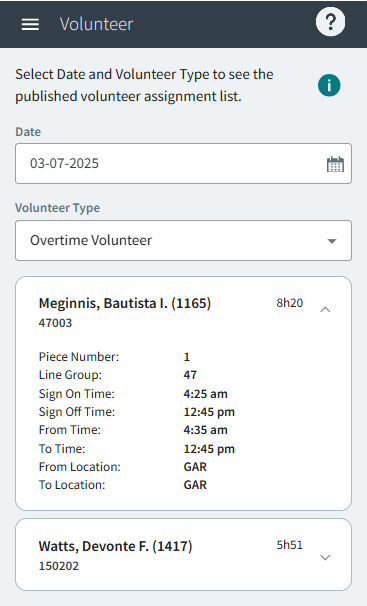
This page is updated after assignments are published for the day for the division associated with the work.