
Viewing the Calendar on Smaller Screens
Information about work assignments, volunteer requests, extra pay requests, and absence requests show by date.
-
Select menu (
 ), then Calendar
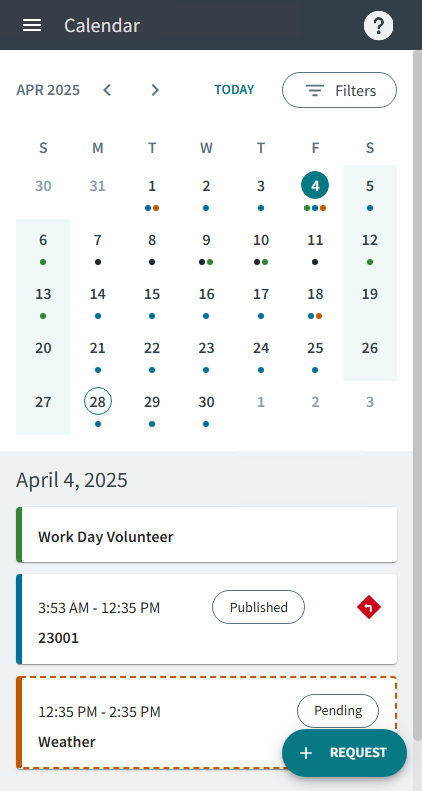
- The selected date is circled.

- The current date is circled. If it isn't the selected date, the
circle has a white background.

- Calendar events are color-coded (
 ,
,  ,
,  ,
,  ).
). - A banner may warn you about fixed route or demand response work that
starts soon.

- The selected date is circled.
- Optional:
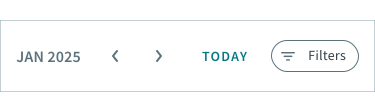
Change the dates shown in the calendar:
-
Select the month and year combination (
 ) to open the year and month selector.
-
Use the next arrow (
 ) or previous arrow (
 ) to show another month.
- Select Today to return to the current date.
-
Select the month and year combination (
- Optional:
Apply calendar filters:
-
Select Filters (
 ).
).
-
Use the filter options to change the types of events shown in the
calendar:
- Work Assignment (). Work currently expected to be performed.
- Volunteer (). Dates for additional work if something becomes
available.
- Extra Pay (). Pay requests made for circumstances outside of
regular wages.
- Absence (). Absences and pending absence requests. All absences
are shown in the calendar.
- Pending Requests. Requests that aren't yet approved. Select the other filters to apply before adding Pending Requests to narrow the results.
- Work Assignment (
-
Select Filters (
-
View daily calendar information:
-
Select a date.
Event cards appear at the bottom of the screen.
-
Select the arrow (
 ) to go back to the calendar.
-
Select a date.
- Optional:
Create requests:
- Select .
See Creating Absence Requests on Smaller Screens for more information about creating absence requests.
- Select .
See Updating Volunteer Information on Smaller Screens for more information about creating volunteer requests.
- Select .