
Viewing the Calendar on Larger Screens
The Calendar page is your landing page after logging in to Employee Self-Service.
-
In the navigation bar, select Calendar.
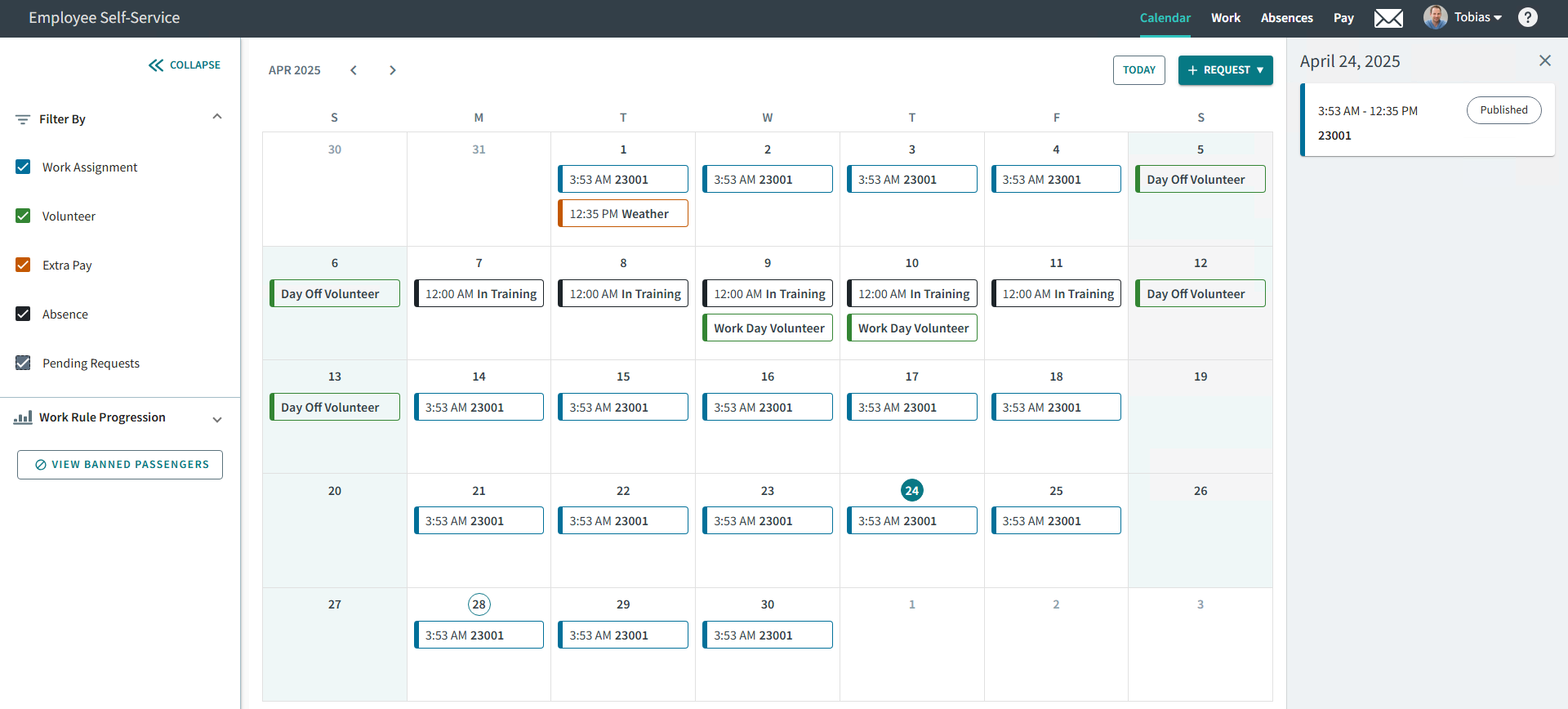
- The selected date is circled.

- The current date is circled. If it isn't the selected date, the
circle has a white background.

- Calendar events are color-coded.
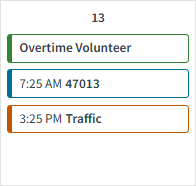
- A banner may warn you about fixed route or demand response work that
starts soon.

- The selected date is circled.
- Optional:
Change the dates shown in the calendar:

-
Select month/year (
 ) to open a month selector. Select the year and then the
month.
) to open a month selector. Select the year and then the
month.
-
Use the arrows to move forward (
 ) or backward (
 ) to another month.
-
Select Today (
 ) to return to the current date.
-
Select month/year (
- Optional:
Apply calendar filters:
-
Expand (
 ) the left sidebar.
-
Expand (
 ) the Filter By section.
-
Select the event types to show in the calendar:
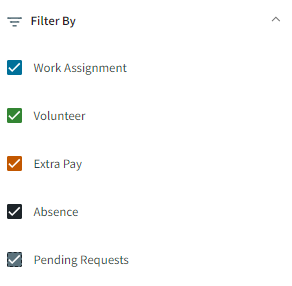
- Work Assignment. Work currently expected to be performed.
- Volunteer. Dates for additional work if something becomes available.
- Extra Pay. Extra pay requests (also called extra pay claims) made for circumstances outside of regular wages.
- Absence. Absences and pending absence requests. All absences are shown in the calendar.
- Pending Requests. Requests that aren't yet approved. Select the other filters to apply before adding Pending Requests to narrow the results.
-
Expand (
-
View information in day view:
-
Select a calendar date.
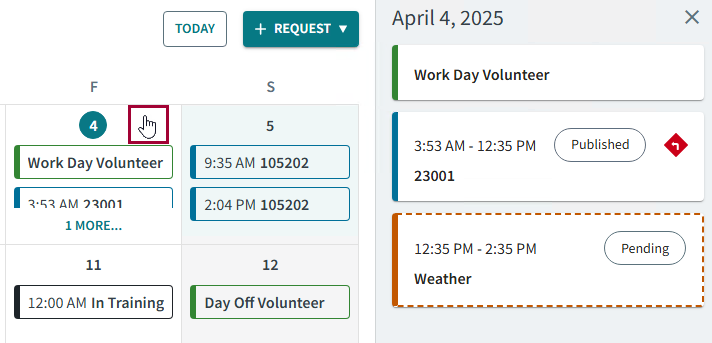
Calendar event cards for the selected date show in the right sidebar.
-
Select event cards in the calendar or in the right sidebar.
More information is provided and actions are made available.
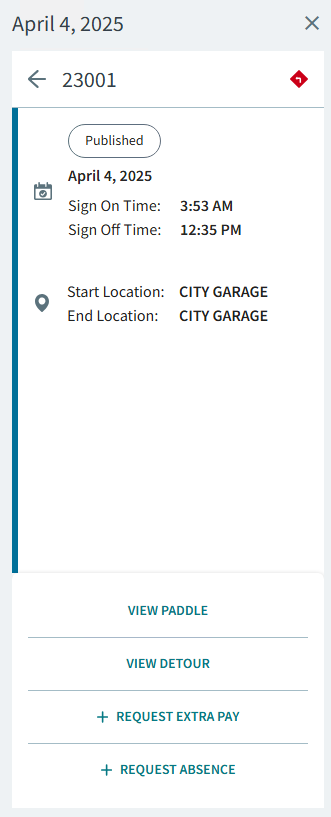
Available actions depend on the event type and transit agency policies.- View Paddle or View Manifest information for work assignments.
- View Detour information for work assignments.
- Sign In to mark yourself present for today's work assignment.
- +Request Extra Pay for earlier work assignments.
- +Request Absence for a future date.
- Edit Request to update extra pay, volunteer, and absence requests.
- Delete Request to remove extra pay, volunteer, and absence requests.
-
Select the arrow (
 ) to go back to the calendar.
-
Select a calendar date.
- Optional:
Create requests:
- Select .
See Creating Absence Requests on Larger Screens for more information about creating absence requests.
- Select .
See Updating Volunteer Information on Larger Screens for more information about creating volunteer requests.
- Select .