
Using Tiles
Tiles are data snapshots defined and pinned to dashboards by power users.
- Open a dashboard.
- Hover over a tile to show More options (…).
-
Select the action to perform:
- Add a comment. Adding a comment creates a
bookmark so that other users can see the content you were looking at when
you made the comment. Select Post to publish your
comment.To see tile conversations, select Show tile conversations near the tile title.

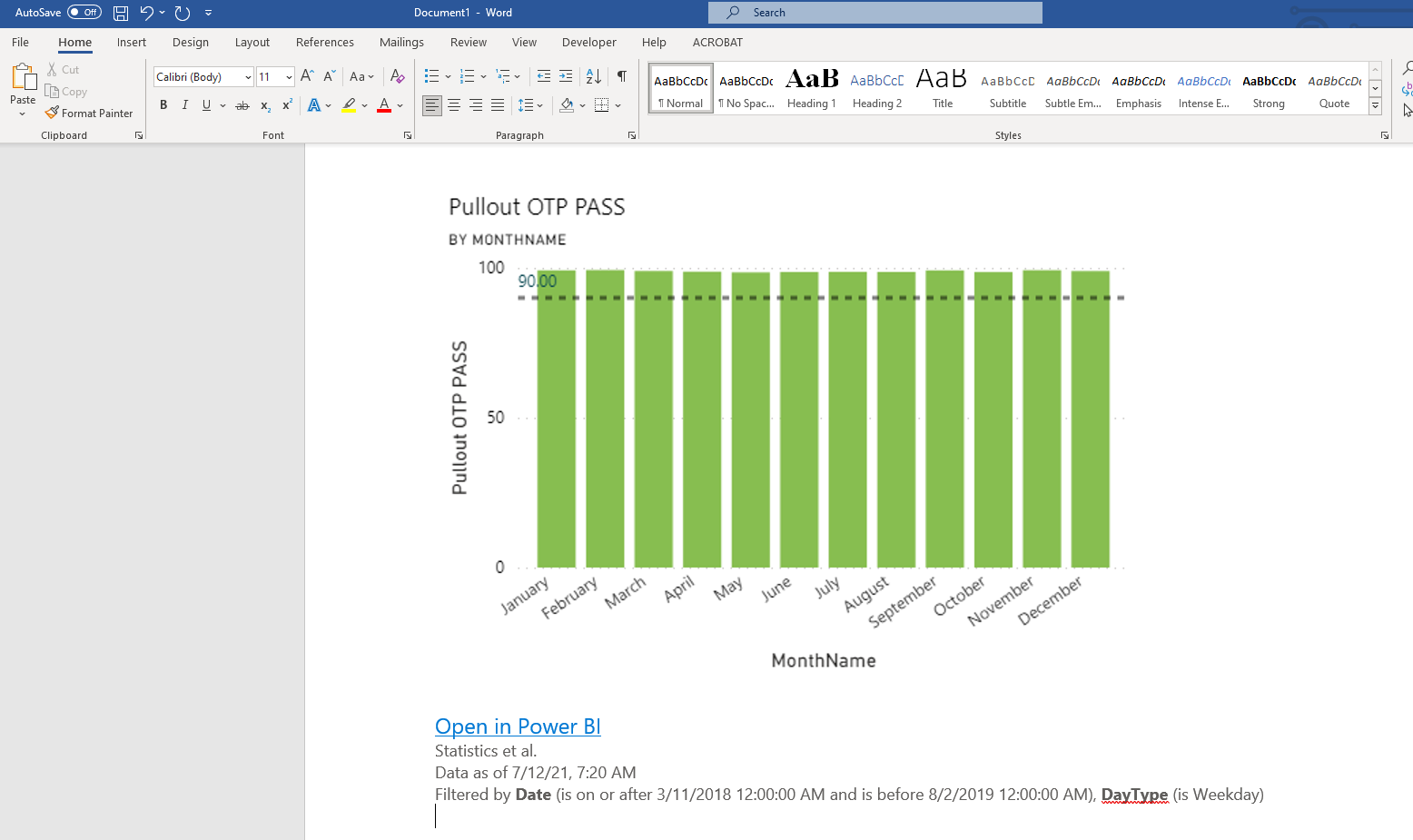
- Copy visual as image. Copy the visual to paste
into other applications. For example, Microsoft Word.
- Delete tile. Removes the tile from the dashboard.
- Edit details. Allows you to update tile information. For example, the tile Title, Subtitle, and whether or not to use a custom link.
- Export to .csv. Downloads a .csv file.
- Go to Q & A. Opens the Q&A area so that you can ask questions about your data.
- Go to report. Opens the report from which the tile was created.
- Open in focus mode. Opens the tile in its own window.
- Open hyperlink. Opens the linked address when a custom link has been added to the tile.
- Pin tile. Allows you to pin the tile to another dashboard.
- View insights. Opens the tile in focus mode and shows additional insights on the right side of the page. Select insights to see more information, including filter options.
- Add a comment. Adding a comment creates a
bookmark so that other users can see the content you were looking at when
you made the comment. Select Post to publish your
comment.