
About Schedule Editor View Tab
The View tab shows scheduling information (schedules, runs, client itineraries, and booking information) and allows you to edit a schedule (insert breaks, resequence events, and so on).
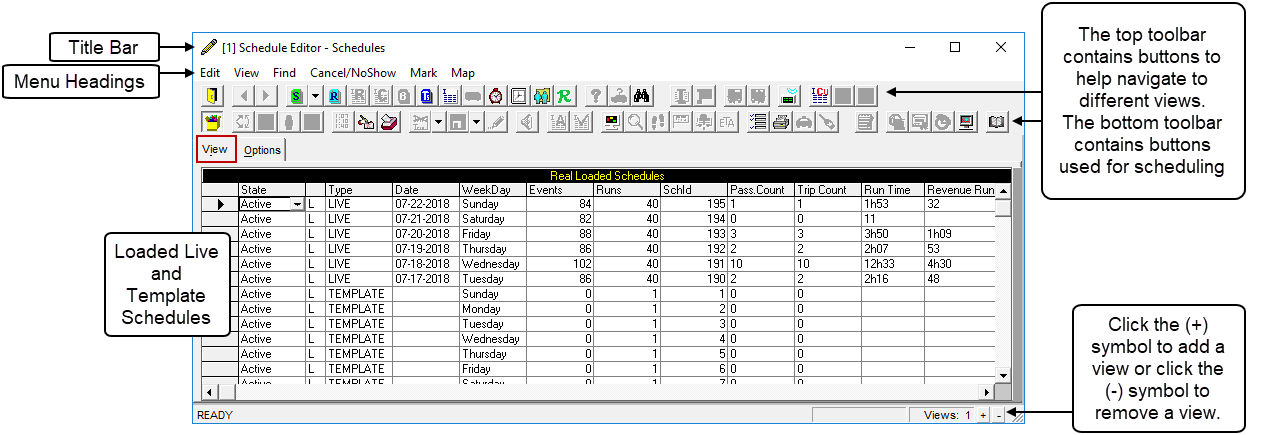
Like wizards, Schedule Editor opens over the active window. If the screen obstructs
a part of the active window, do one of the following:
- Move it (position the pointer over the title bar, hold down the left mouse button, and then drag the window to another part of the screen).
- Resize it (position the pointer over the bottom right hand corner of the screen and drag the screen to the appropriate length and width).
- Minimize it.
All column headings in Schedule Editor can be resized as follows:
- Position the mouse pointer over the edge of a column heading until it turns into a double-headed arrow.
- Hold down the left mouse button and slide the mouse to the left or right.
- Release the mouse button when the column is the appropriate width.
This feature is only enabled when the grid shows trips. For example, in the Run Itinerary, Client Bookings, Unscheduled Trips, and All Scheduled Trips views.