
Inserting Flag Stops into Run Itineraries
Sometimes, an individual on the street signals a vehicle to stop in order to be picked up at, or a passenger on board a vehicle requests to be dropped off at, an unscheduled location.
Before you begin
About this task
Procedure
- Select the event that precedes or follows the flag stop.
-
Right-click (or click Edit) and do one of the following:
To Do this Insert the flag stop before the selected event. Click Add Break Before. Insert the flag stop after the selected event. Click Add Break After. The Add Break Before or Add Break After dialog box appears. - In the list of break types, click Flag Stop (FS).
-
In the Geocode or Address frames, assign
a location where the flag stop takes place using one of the following options:
Option Description To Location In the search field, type the common location. For example, Benson Books. If the system is able to locate the entry in the database, the address appears in the address box.
Click the ellipsis button (…) to use the Find Location dialog box.
To Stop In the search field, type a forward slash (/) followed by the stop ID number or type the stop abbreviation. Once the system has found a match to your entry, the address appears in the address box.
To Garage In the search field, type the name of the garage. For example, AATA. Once the system has found a match to your entry, the address appears in the address box.
Select Address Type the address in the address box and geocode that address. Using a geocoded address will take into account the driving time.
Floating Geocode Select this command to use the previously geocoded stop as the flag stop. - Optional: In the Break Times frame, type the Length of the flag stop.
-
Click OK.
The Add Break dialog box closes and the flag stop is inserted into the run itinerary.
-
Look in the Act column for FS events.
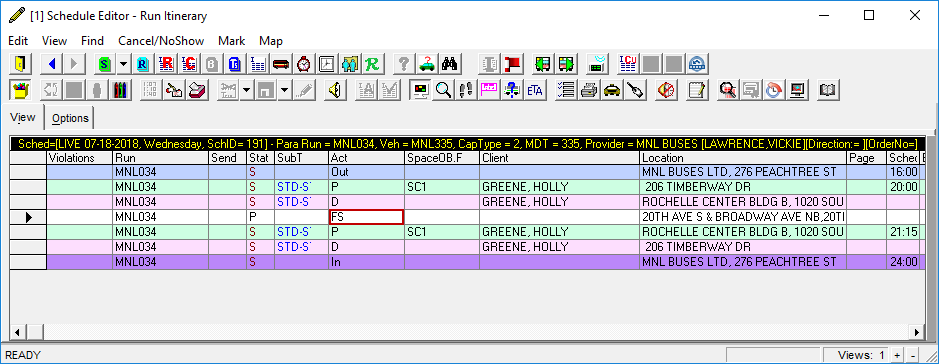
- Optional: Add any information to the flag stop event. For example, number of passengers, fare collected, and space type.