
Assigning Vehicles to Runs in Dispatch
Dispatch can be used to assign vehicles to runs on the day of operation.
Before you begin
About this task
When you assign a vehicle to a run from Dispatch, confirm that you have the correct schedule.
Procedure
- Click the Unassigned tab.
-
Select the Unassigned Runs option. If the screen is blank, there
are no unassigned runs. Unassigned runs are shown with a red exclamation mark.

-
Select the unassigned run.
The bottom grid shows all the pick-up/drop-off events scheduled for that run.
-
Right-click, and then click Vehicle Assign.
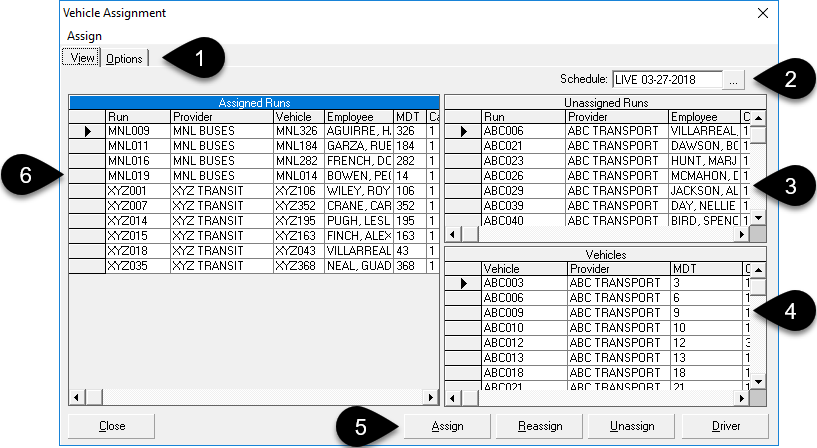
The Vehicle Assignment dialog box appears.
- 1
- Options tab used for filtering runs and vehicles shown in the Vehicle Assignment dialog box.
- 2
- Selected schedule.
- 3
- All unassigned runs for the selected schedule.
- 4
- Assigned and unassigned vehicles.
- 5
- Available actions for assigning vehicles.
- 6
- All assigned runs for the selected schedule.
You can sort records in the Unassigned Runs, Vehicles, or Assigned Runs grids by clicking on any column.
- Click the Options tab and apply the search filters as required.
-
Do one of the following:
- From the Unassigned Runs grid, select the unassigned run and then select an appropriate vehicle from the Vehicles grid. Click Assign.
- Right-click in the Unassigned Runs grid. The Assign Vehicle dialog box appears. Type the vehicle name in the field or click the ellipsis button (…) to launch the Select vehicles dialog box. If the capacity type of the vehicle matches that of the run, the vehicle is immediately assigned to the run. If they do not match, a warning message appears giving you the option to continue or cancel.
When assigning a vehicle to a run, vehicles must have the same capacity type as the run. Capacity types are assigned to runs in and to vehicles in . If the run capacity type does not match the vehicle capacity type, a confirmation message appears. Click No to cancel the assignment or click Yes to continue assigning the vehicle to the run. The system applies the capacity type of the vehicle.You can assign a vehicle to two runs as long as the operating times of the runs do not overlap. Some users may have the security rights to assign a vehicle to multiple runs with overlapping times. These users will receive a warning message that allows them to continue the operation. -
Click Assign.
The selected vehicle is now assigned to the run and appears in the Assigned Runs list on the left.