
Creating Funding Allowances
The Trip Funding Allowances ancillary data dialog box allows you to define the amount of funding the source provides and the type of clients who are eligible.
Before you begin
Funding Sources, Booking Purposes, and Passenger Types ancillary data must already be defined in the system.
About this task
- Individual clients
- For example, a funding source agrees to provide nine trips per client or $100.00 per client. When either limit is reached, the funding source no longer sponsors the client’s trips.
- Overall subsidy
- For example, if the funding source only provides 100 trips per year or a maximum of $1,000.00, the funding source no longer sponsors any client trips when one of those limits is reached.
Procedure
- Click .
- Click the funding Source that provides the allowance.
- Click the booking Purpose for which the allowance is granted.
- Click the Passenger Type that the funding source sponsors.
- In the Subsidize Percent field, type the percentage that is covered by the funding source for one trip in either the Flat or Variable column, as applicable.
-
In the Client Co-pay field, type the flat fare the client is
required to pay.
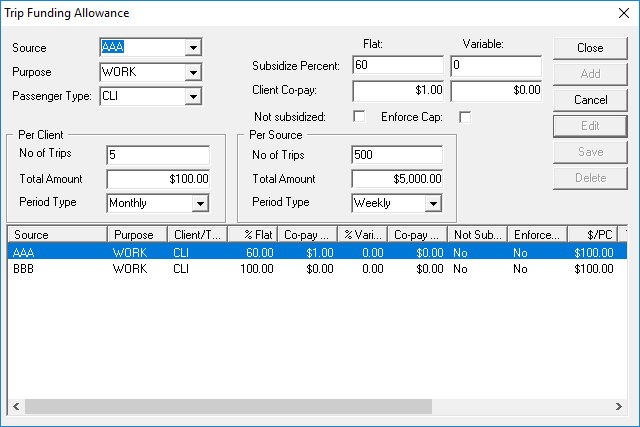
For example, type 1 if the client is to pay $1.00.If the client co-pay amount is defined as a flat $1.00, when a booking with a total fare of $10.00 is created for a defined funding source (AAA), a defined booking purpose (Work), and a defined passenger type (CLI) then the client pays $1.00 of the $10.00 fare.
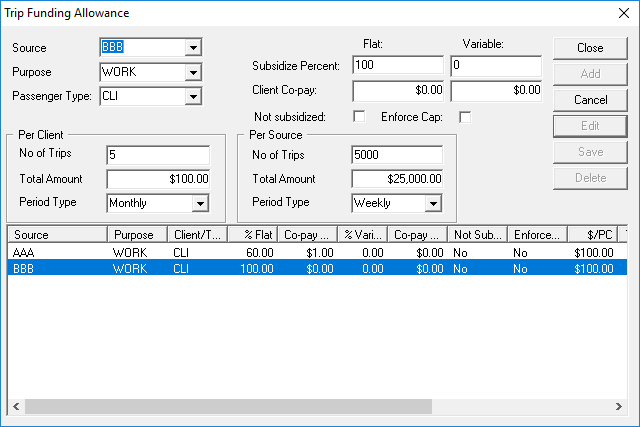
If the funding source pays 60% of the remaining fare (amounting to $5.40), the balance of $3.60 is paid by additional funding sources (or the client, if there are no other funding sources).
In the Trapeze4 Workstation, this example would resemble the following:- Create funding allowance ancillary data for the first funding source:
- Create funding allowance ancillary data for the second funding source:
- Define the funding sources as applicable to the client:
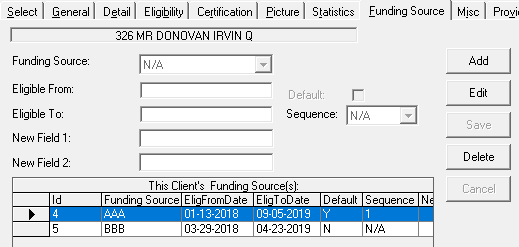
Note that the funding source paying 60% of the client trip is the client's default funding source and is the first (1) in Sequence.
- Create a trip booking that includes the following:
- The defined purpose and passenger type for the trip match those defined for potential funding sources in funding allowances ancillary data (WORK and CLI).
- The defined funding sources are listed (AAA and BBB). (These should be automatically populated from the client record, although they can also be manually selected.)
- A fare type that has been defined as costing $10 (in ).
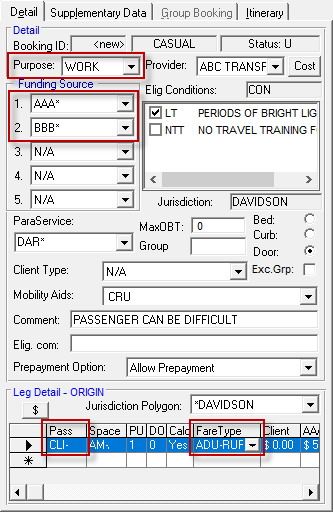
- Use the $ button (in the Leg Detail
frame) to show the Fare Summary dialog box:
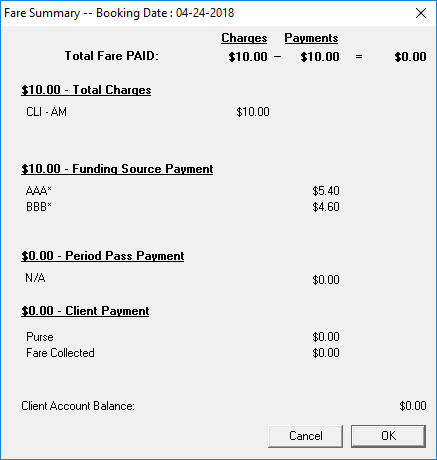
The funding sources cover the cost of the client trip and the client pays $0.
- Create funding allowance ancillary data for the first funding source:
-
In the Trip Funding Allowances dialog box, use the Not
Subsidized check box to define whether additional funding sources are to pay
the remaining portion of the fare with or without the Client Co-pay
amount.
If the Not Subsidized check box is selected the client pays the Client Co-pay amount. For example, when the total fare is $10.00, the client co-pay amount is $1.00, and the funding source pays 60% of the remaining fare ($5.40). If an additional funding source pays 100%, it pays the balance of $3.60. The client must still pay $1.00.If the Not Subsidized check box is left clear, additional funding sources pay for the remaining portion of the fare, including the Client Co-pay amount. For example, when the total fare is $10.00, the client co-pay amount is $1.00, and the funding source pays 60% of the remaining fare ($5.40). If an additional funding source pays 100%, it pays $4.60 (the balance of $3.60 + the co-pay amount of $1.00). The client is not required to pay any amount.
-
Using the Enforce Cap check box, decide whether a trip cannot be
booked with a funding source if the funding source limit has been reached.
If the Enforce Cap check box is left clear, trips can still be booked with a funding source even after the funding source limit has been reached, but the fare amount will be transferred to the client.
-
Define the Per Client restrictions:
- Type the maximum number of trips (No of Trips) each client can take during the selected period type.
- Type the maximum amount of money (Total Amount) that a client can pay to take trips during the selected period type.
- Click the Period Type during which the maximum amounts will take place (weekly, monthly, yearly, or daily).
-
Define the Per Source restrictions:
- Type the maximum number of trips (No of Trips) each client can take using a funding source during the selected period type.
- Type the maximum amount of money (Total Amount) that a funding source can pay for a client to take trips during the selected period type.
- Click the Period Type during which the maximum amounts will take place (weekly, monthly, yearly, or daily).
-
Click Add.
The funding allowance is added to the list.
- Click Close.