
Creating Provider Records
Providers are the operators of the paratransit service that supply the vehicles and often the drivers as well.
About this task
Provider records are created and managed in Providers ancillary data. If the transit site no longer uses a provider, mark it as inactive so that the provider will still appear on the Select tab of Providers but is not included as an option in any of the Provider lists.
Procedure
- Do one of the following:
- Click .
- Click the Providers button:

The Providers ancillary screen appears.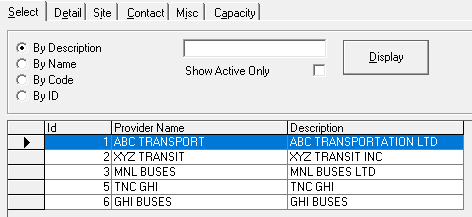
-
Click Add New:

The Detail tab appears.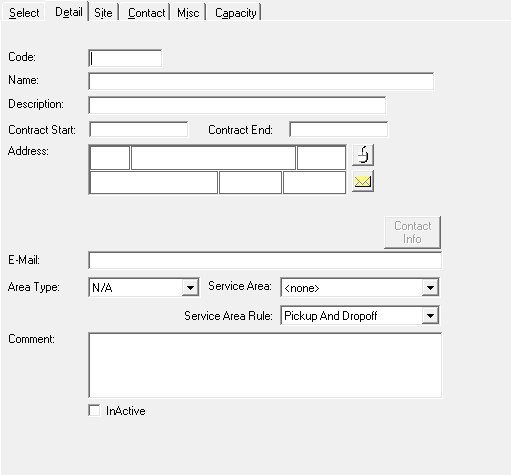
-
Provide the following information as needed:
- Name
- An abbreviation for the provider.
- Description
-
The full name of the provider.
- Contract Start
- The first date of the contract with the provider.
- Contract End
- The end date of the contract with the provider.
- Address
- The provider’s address.
If you have arranged with your Trapeze Customer Care representative to have geocoding functionality in this dialog box, you can use the Address Matching and Mouse options to geocode the address.
- The provider's email address.
Email addresses should contain an @ symbol and more than five characters.
- Area Type
- The polygon type the provider falls within.
Polygon types can be added or edited through .
- Service Area
- The service area, if the provider is restricted to one or more areas.
- Service Area Rule
- The service area rule.
Pickup And Dropoff is selected by default.
- Comment
- Any comments about the provider.
- InActive
- Indicates that the provider is inactive. Selecting this option prevents the provider from appearing in any Provider lists.
- TNC
- (Trip Broker TNC Module only) Indicates the provider is a transportation network
company. (Transportation network companies connect drivers with passengers and
facilitate ride sharing.)
If selected, define the Allowed space types for clients scheduled to provider runs.
Note that to work properly this feature requires that the Trip Broker TNC module be installed on the system.
- Client Prepayment Required
- Indicates prepayment is needed from the client before the trip can be scheduled to
this provider's runs.
Typically, this option is used with EZ-Wallet for TNC providers.
- Click the Site tab.
-
Provide the following information as needed:
- Security Group Name
- The user group that can view and edit information about the provider.
- Site Name
- The provider's site name.
- Trading Name
- (Trapeze Finance & Contracts – UK Only) Type the name used if the provider operates and trades under an identity separate from their legal identity. For example, Provider X trading as Provider Y.
- Short Name
- An abbreviated name for the provider.
- Registration No
- The provider's registration number.
- Account No.
- The provider's account number.
- License No.
- The provider's license number.
- License Type
- The provider's license type.
- Click the Contact tab.
- Type the information for the contact person at the provider agency.
-
Click the Misc tab.
Supplementary data associated with the provider appears.
- Optional: Add any information about how the provider’s cost of serving a trip is computed for Low Cost Provider determination by clicking Faring.
- Click the Capacity tab.
-
Specify the number of passengers that the provider can transport each day:
- From Date
- The start date from when the provider is restricted to the number of passengers defined in the selected row.
- To Date
- The end date for the number of passengers defined in the selected row.
- Sunday... Saturday
- The number of passengers the provider can transport each day during the From–To period.
- Click the Save button.