
Viewing Loaded and Unloaded Schedules in Schedule Editor
You can set up the system to show both loaded and unloaded schedules in Schedules Editor.
Before you begin
Procedure
-
If the Loaded/Unloaded Schedules option is selected, do one of
the following:
- Click the Loaded/Unloaded Schedules button (to deselect
it).

- Click to remove the check mark beside the command.
- Click the Loaded/Unloaded Schedules button (to deselect
it).
-
Do one of the following:
- Click .
- Click Display Schedules.
The following example shows loaded and unloaded schedules. Loaded schedules are marked with an L.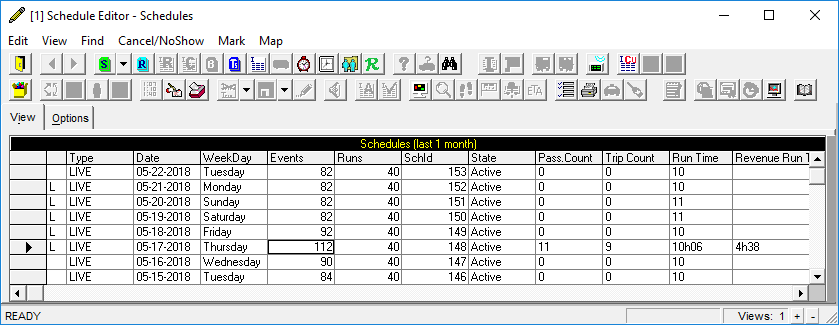 Schedules that are not loaded can be viewed but no changes can be made to them.