
Viewing Schedule State Changes in Tracker Action Browser
When a user changes the state of a schedule, it is automatically recorded in the Tracker Action Browser.
Before you begin
About this task
Procedure
-
Click the Display Schedules button:

- Select a schedule.
-
Click the Tracker Action Browser button:

The Tracker Action Browser dialog box appears.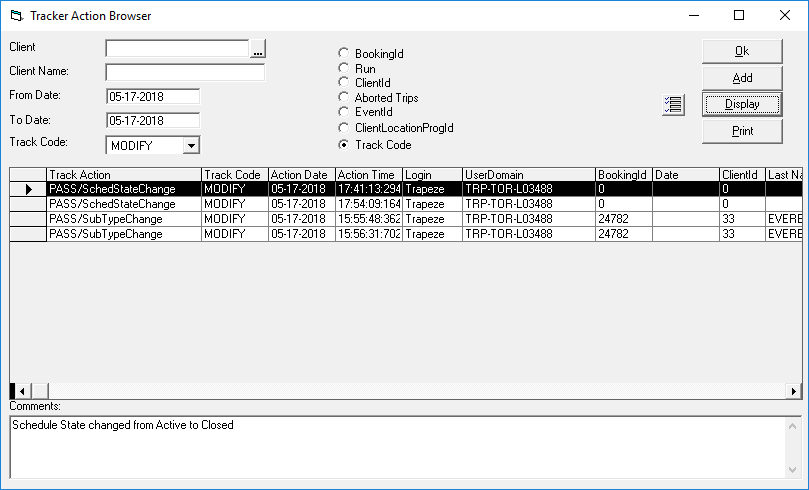
- Select the Track Code option.
- Define the From Date (first date from which to look for schedule state changes).
-
Select the Track Code
Modify.
Changes tracked for PASS/SchedStateChange should be associated with the Modify track code.
-
Click Display.
All changes related to the schedule are shown in the grid.
-
Look for records with the action PASS/SchedStateChange.
Any Tracker Action Browser records will include the date and time of the change and the username who made the change.
-
Once you have found a record, select it.
The Comments field describes the change that was made.If no records are found (when records should be found), ask a system administrator to confirm that the Tracker Action is defined correctly in ancillary data.