
Defining Client Eligibility Conditions
When listing a client's eligibility conditions in the Eligibility tab, all fields are optional except for the From Date field. You must type a date in the From Date field or the record cannot be saved.
Before you begin
Eligibility conditions ancillary data must be created by a system administrator.
Procedure
- Search for and select the client.
- Click the Eligibility tab.
-
Below the client name field, in the eligibility list, select the conditions
under which the client may use the service.
You can select multiple conditions.
-
Click the downward-facing arrow button.
The condition is added to the client record. Details are shown in the top grid.
-
For each condition, select an Action:
Option Description N/A Nothing is applied. Display The eligibility condition appears in an information window in Trip Booking when the client is selected. Refuse Not used. -
In the Polygons column, specify a polygon by selecting
the polygon type (for example, ADA, Airport, or Jurisdiction) and then selecting
the appropriate polygon.
Only one polygon type can be selected, but multiple polygons within that type can be selected.
-
In the Default column, select up to one default
eligibility condition.
The default eligibility condition determines the funding sources that are automatically populated when a new trip is booked.All eligibility conditions applicable to the booking are shown in the Elig Conditions frame in Trip Booking, but only the default is automatically selected for bookings.
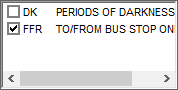
Selecting an eligibility condition in Trip Booking overrides the default selection. -
In the bottom grid, enter a From Date.
All other fields are optional.The bottom grid defines the rules for the eligibility condition.
- Click the Save button:
