You can enter multiple contact people for a provider using the Contact
Category dialog box in Providers ancillary data.
About this task
You can specify multiple methods of contacting each contact person, and indicate when
each contact method can be used.
Procedure
- Do one of the following:
- Click .
- Click the Providers button:

The
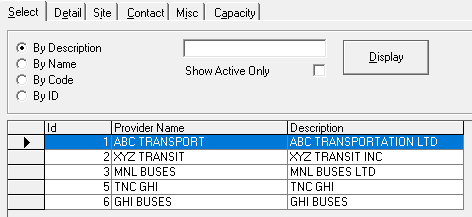
Providers ancillary screen appears.
-
On the Select tab, search for and select the provider for which you want to enter multiple contact people.
-
On the Detail tab, click the Contact Info
button.
The Contact Category dialog box appears.
-
Add a contact to a contact category:
-
In the Name field, enter the complete name or organization name of the contact, as it is specified in the Contact Category system property.
-
Enter the client’s First Name, Last Name, and Middle Initial in their respective fields.
-
Enter the contact’s address in the Address fields.
-
In the Comments field, enter any comments about the contact.
-
From the JuristPoly (Jurisdiction Polygon) drop-down list, select the jurisdiction polygon to which the contact belongs.
-
From the Contact drop-down list, select the contact category to which you want to add the contact.
-
Type the contact’s Fax and Phone numbers in their respective fields.
-
Select the Contact Type from the drop-down list: Location, Provider, or Funding Source.
-
Select the contact’s Facility (location, provider, or funding source) from the drop-down list.
-
Click Add.
The contact entry is added to the list.
-
Click Close.
