
Assessing Statistics of a Cut
After performing an automatic runcut, view some of its statistics. Open the Costing Summary dialog to quickly assess the results of a cut.
-
From the Cut Pieces grid, select the runs for which you want to
view the costing summary.
- Select the runs by run type depending on what you want, for example, all straight runs.
- Select a combination of all your full-time runs, for example, all your straights and splits together.
You do not have to select all the runs in order to view the costing summary for all runs. -
Click or click the Costing Summary button:
 The Costing Summary dialog appears.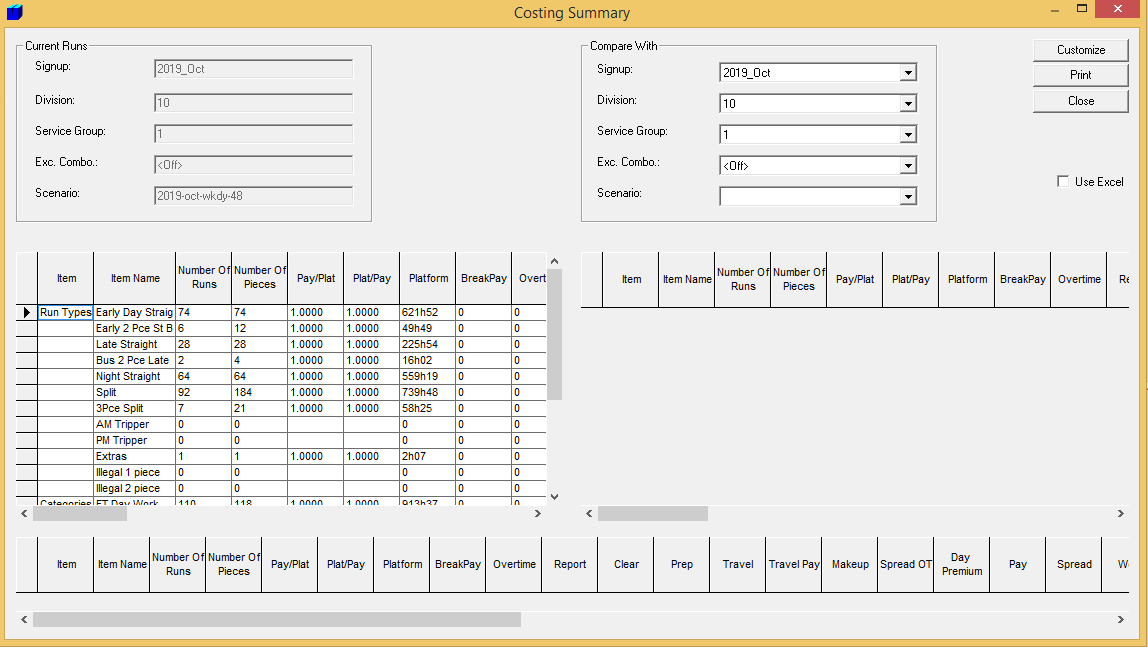
- View all of the costing associated with the selected runs.
-
To choose columns that you want to display, perform any of the following steps:
- Optional:
To compare the run cut results of the current block scenario with another scenario,
select the appropriate options in the Compare With pane to view the
list of block scenarios. In the Scenario list. select the scenario
you want.
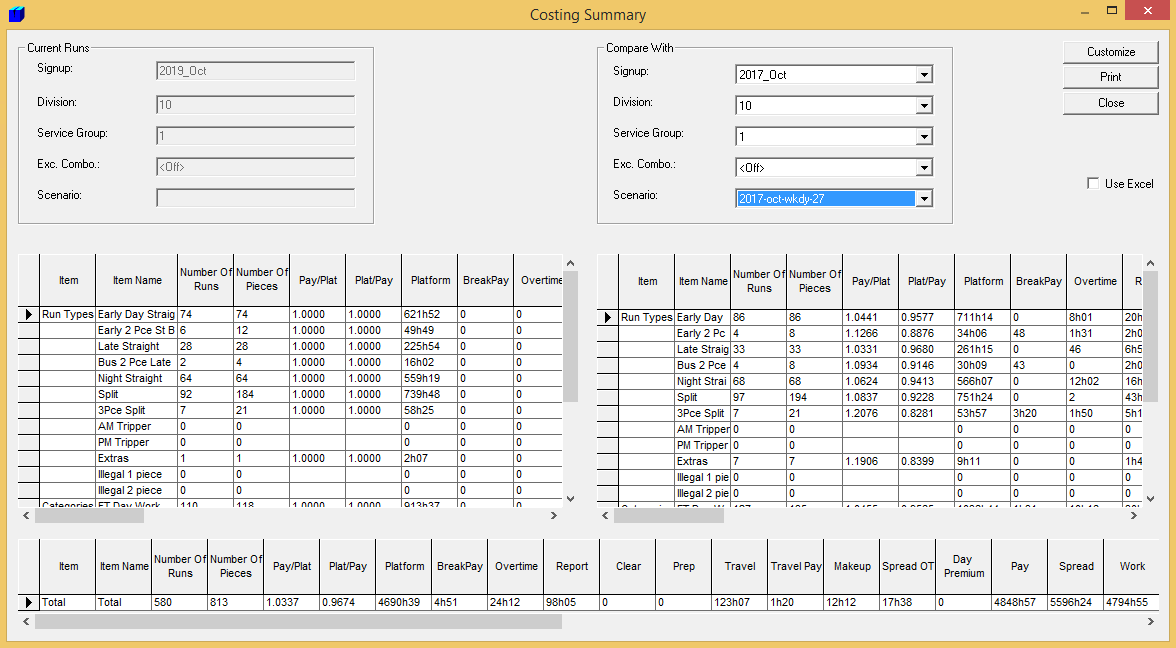
(This Compare function is available only with the Division Split feature of Run Block Optimizer, an add-on module.)The results of the selected scenario are automatically shown on the lower right section of the screen. The following graphic shows the results of comparing the current block scenario with a scenario from another sign-period using the same division and service group:
- Optional: Copy the file into a word processing application and print a hard copy for yourself in order to compare the results with successive run cuts.
- Click Close.