The Combine Runs feature in FX Rostering
only works if you also use BlockBuster.
Requirements
Before applying the Combine Runs feature in
the Rostering screen, make sure that the following items exist in
BlockBuster:
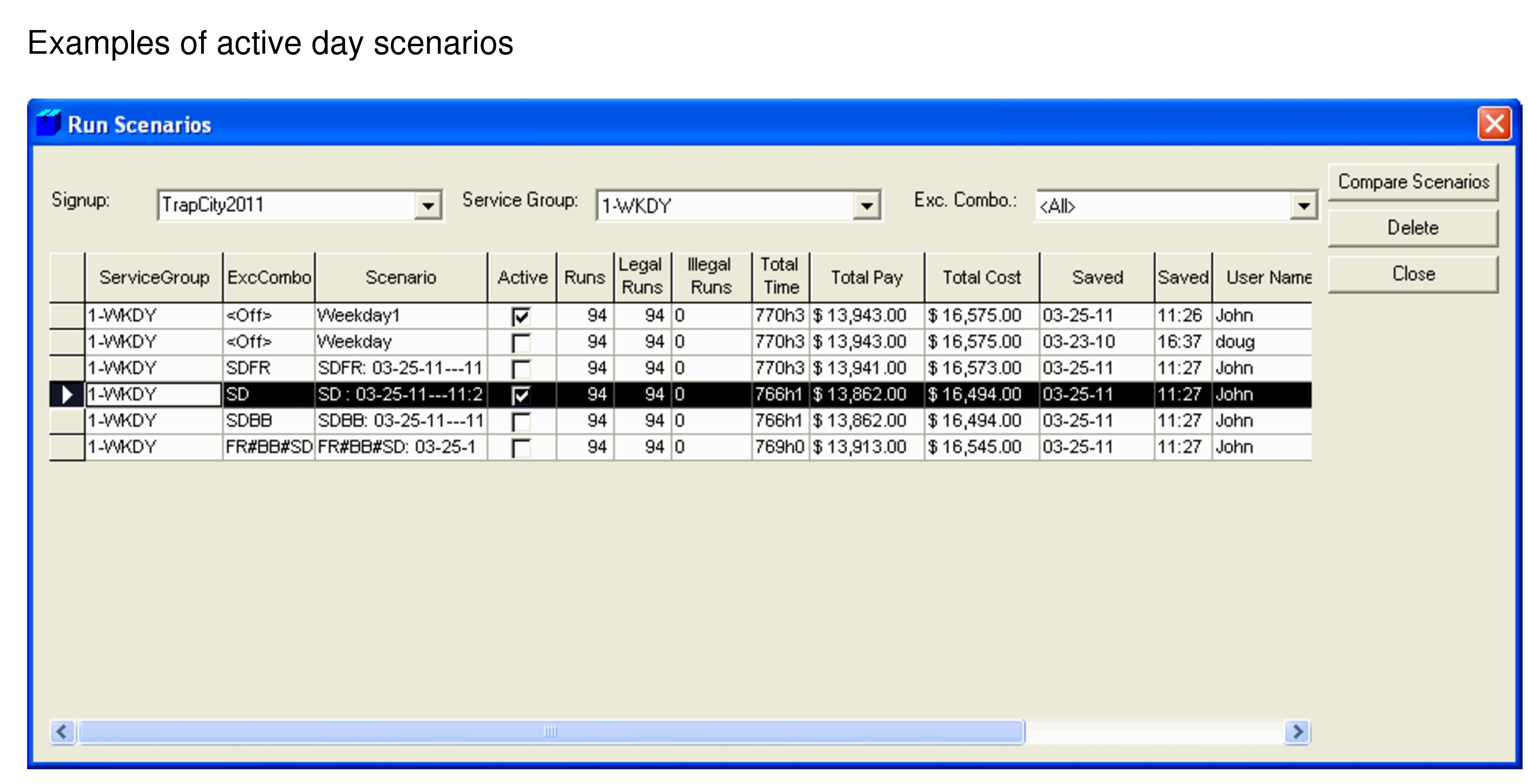
An active scenario for each day of the week.
Each active scenario is loaded into Rostering on the correct day
of the week – after runcutting, make sure that the scenarios with weekdays are
active.
A run type exists in BlockBuster for the grouped run to be
created, for example, if two pieces are grouped, a 2-piece part-time run type must
exist.
Creating Run Types
Create the run types applicable to the runs you want to combine.
Generating Exception Runs
Generate exception runs based on the weekday exception combination after runcutting.
Saving Scenarios
After you have defined the necessary parameters and achieved the runcut you want for an
individual day of the week, save the scenario. You must create a scenario for each day of
the week. Mark these scenarios as active.
Load the runs into Rostering in FX where selected
runs are combined as applicable. After combining the runs, save the roster file.
Saving Scenarios After Runs Combined
After combining the runs and saving the roster file in FX, you
must save and mark each of the day exception scenarios as active again in
BlockBuster.
Go back to the Rostering screen in FX and
reload the roster file. Proceed with the applicable Rostering functions depending on your
transit site requirements.