
Formatting Data in Columns
You can apply column styles to an SQL report and change the column header name and appearance, the data formatting, and add summary values or subtotals.
- In an SQL report, click in the column you want to format.
-
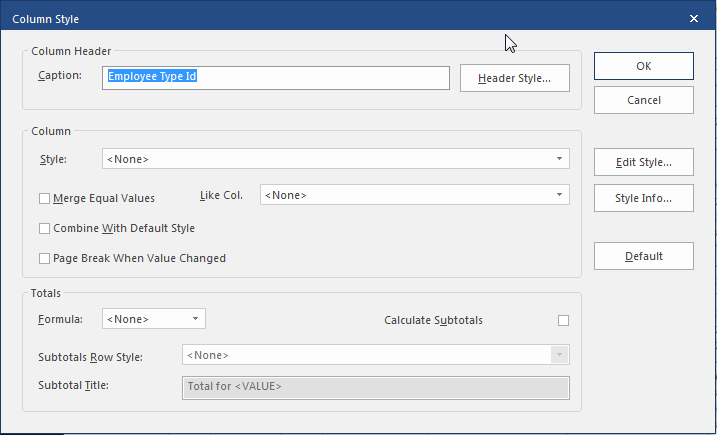
Select Column Style:

-
Modify the options as required:
Option Description Caption Enter a name to replace the current column header. Header Style Select to set the font, color, and alignment for the column header text. Style Select the style in which to display data in the column. Merge Equal Values Select to merge rows in this column with the same value. This provides a cleaner look when you have the same value repeated for many rows in sequence. Combine With Default Style Merge changes with the existing style. Page Break When Value Changed Select to insert a page break when the value in the column changes. For example, if you chose a column with a date and sorted on it, using this feature would create a page for each set of rows with a given date in this column. Like Col. Select a column title you want the selected column to resemble in style. This is a quick way of setting styles for similar columns. Formula Displays a value at the bottom of the column. You can select from Sum (add all values in the column), Count (count the number of values in the column), Average, Min, and Max. This option is only valid for numeric values. Calculate Subtotals Select to include subtotals of the column values. Select a Subtotals Row Style and enter a Subtotal Title. - Select OK.