
About Hold-Downs
Hold-downs designate employees as owners of work originally assigned to employees who are now expected to be absent.
The Work Planner is often used for creating and deleting vacation hold-downs. The Hold-down Management screen allows you to manage all hold-downs in one place. From here, you can create, end, or delete hold-downs.
Before a week begins, you can produce a report with all work that has been vacated for the week. You can then post the report and extraboard operators, in seniority order, can select their work for the week. These assignments can be manually created using the Work Planner.
You can create hold-downs in the Work Planner using menu options or by dragging work from an absent employee to an employee who will hold down the work. (A Hold Down confirmation message appears.)
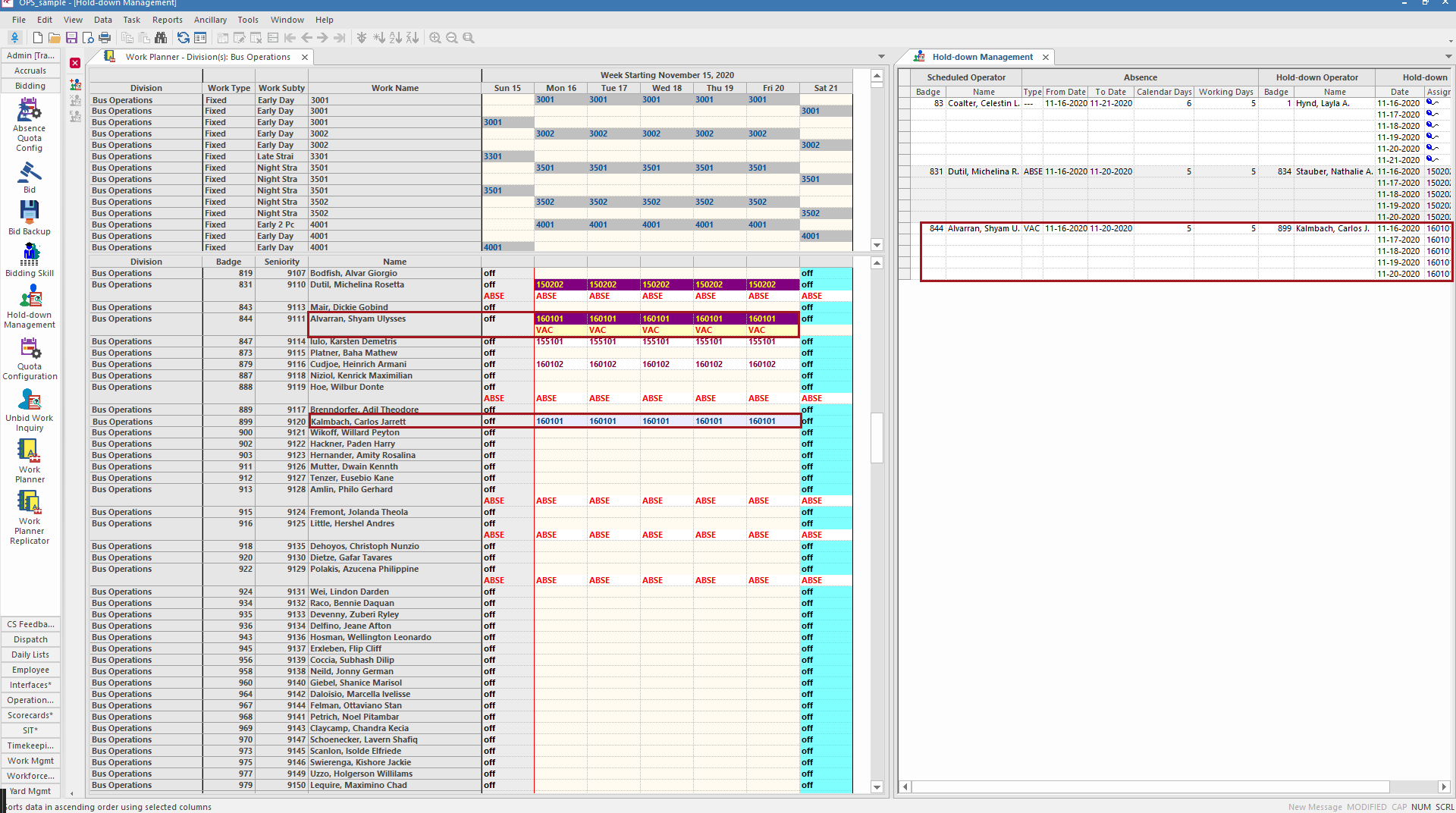
This graphic shows the results of a hold-down created in work planner. Carlos is the hold-down employee for Shyam, who is going on vacation. The Hold-down Management screen shows only hold-downs and is easier to read than the Work Planner. You can change colors in the Work Planner in the Context (F3).
You should only create hold-downs for entire calendar weeks. However, you can delete partial weeks from existing hold-downs. For example, if an absent employee returns before the end of a calendar week, you can delete the remaining days of an associated hold-down.
If absence and hold-down relationships are enforced at your agency, you can only create hold-downs for eligible absences that have already been created. The system also warns you if you create a hold-down longer than the maximum length specified for the absence type, or if you change or delete an absence associated with a hold-down.
At some agencies, you can create multi-level hold-downs. That means operators can hold down work for operators who are holding down other operators’ work. If multi-level hold-downs are used at your agency, when you delete a hold-down, any dependent hold-downs are also removed. For example, Operator Bob is holding down Operator Anne’s work, and Operator Chris is holding down Operator Bob’s work. If you delete the hold-down where Operator Bob is holding down Operator Anne’s work, the second hold-down is also deleted.
When work is reassigned using a hold-down, colors are updated in the Work Planner for the absent employee, and for the employee who is holding down the work.